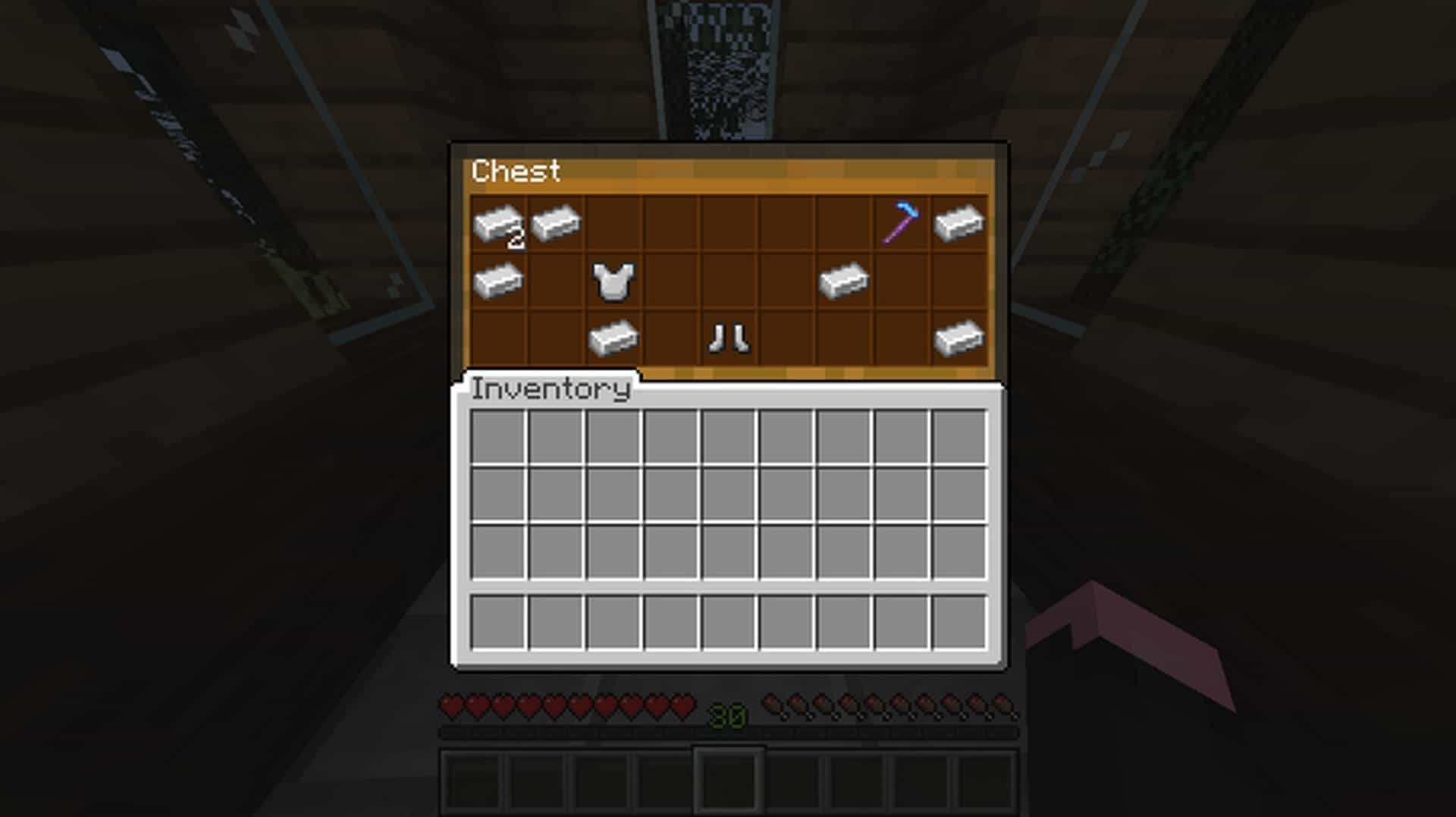
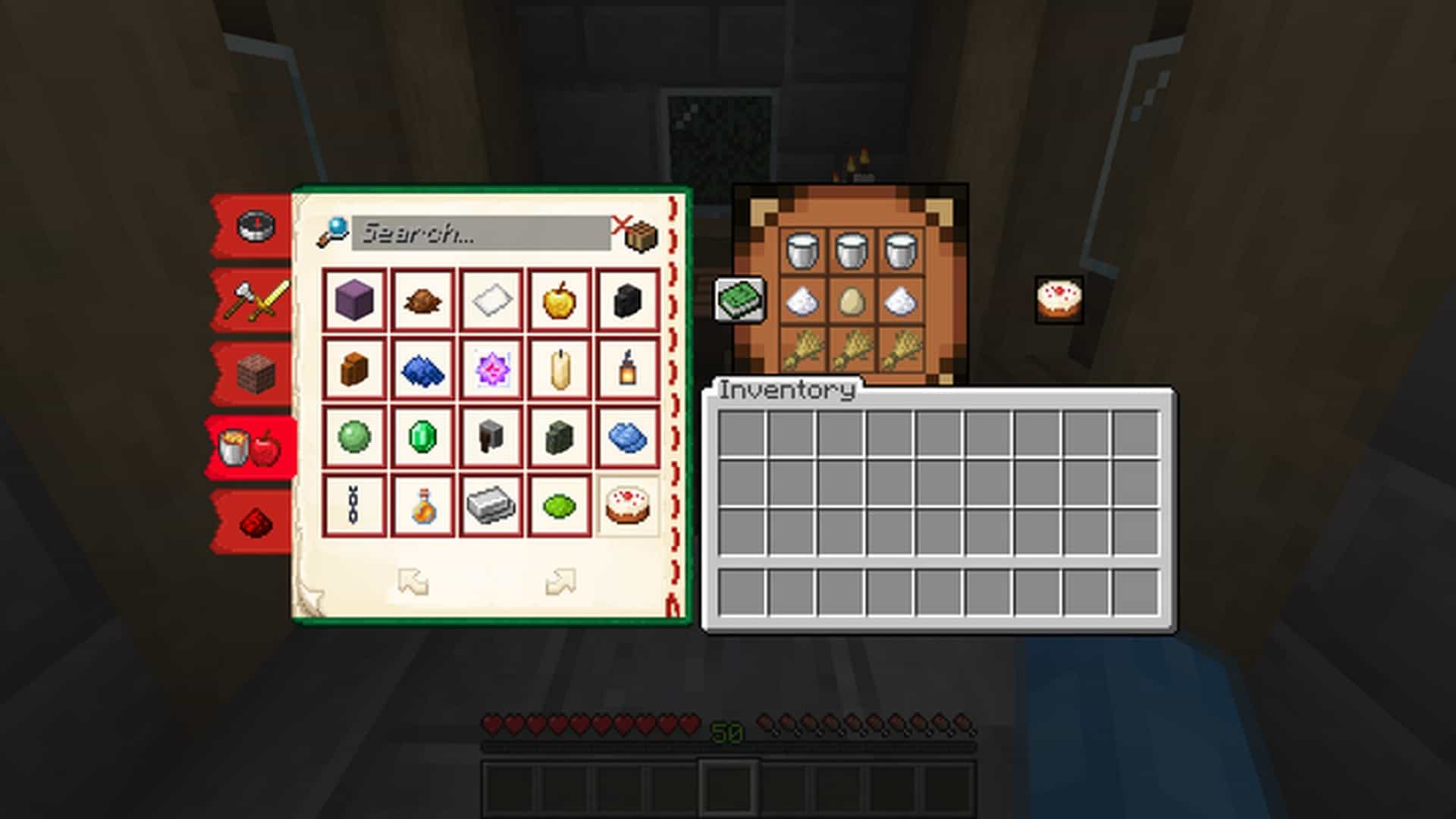
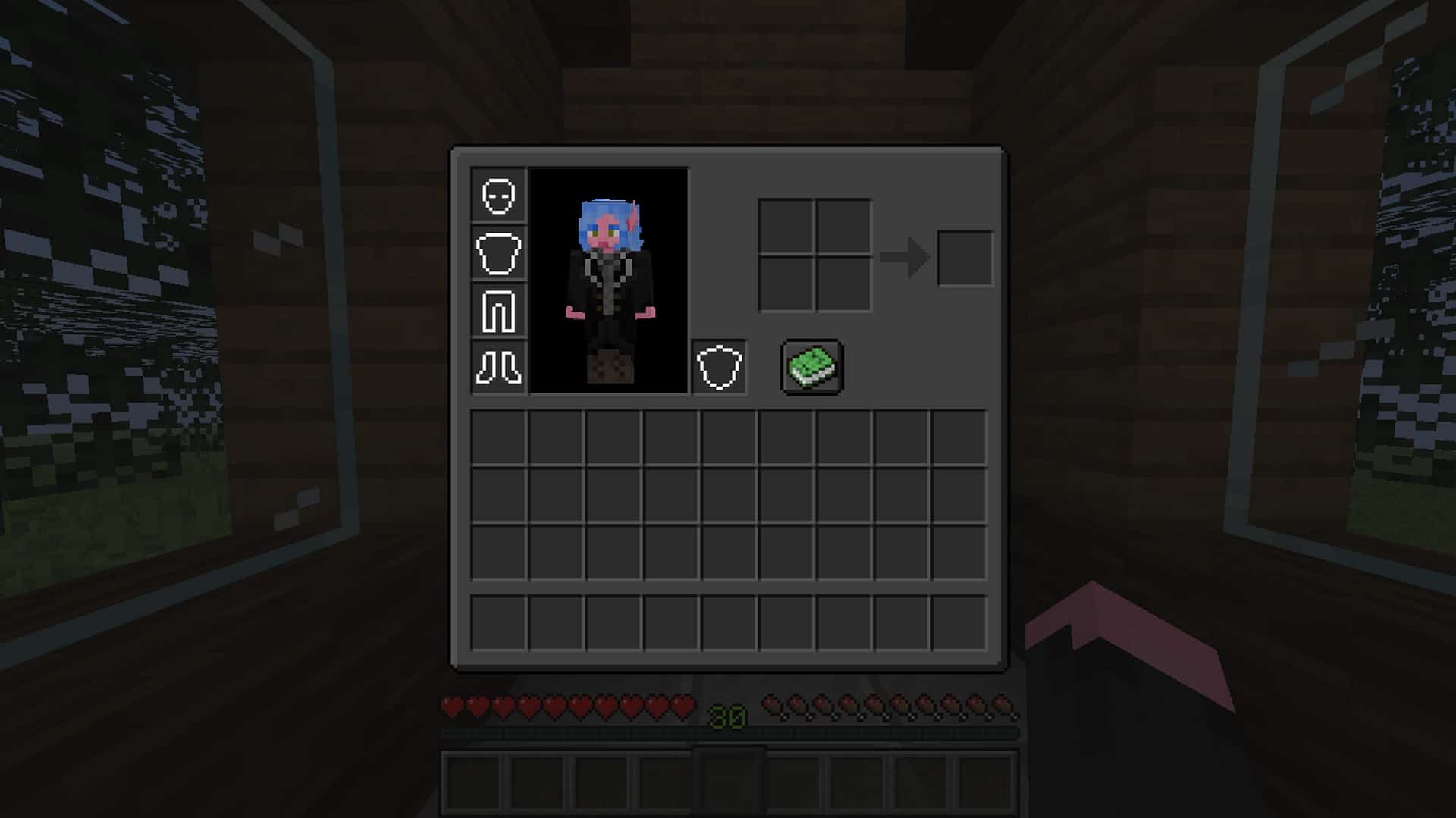
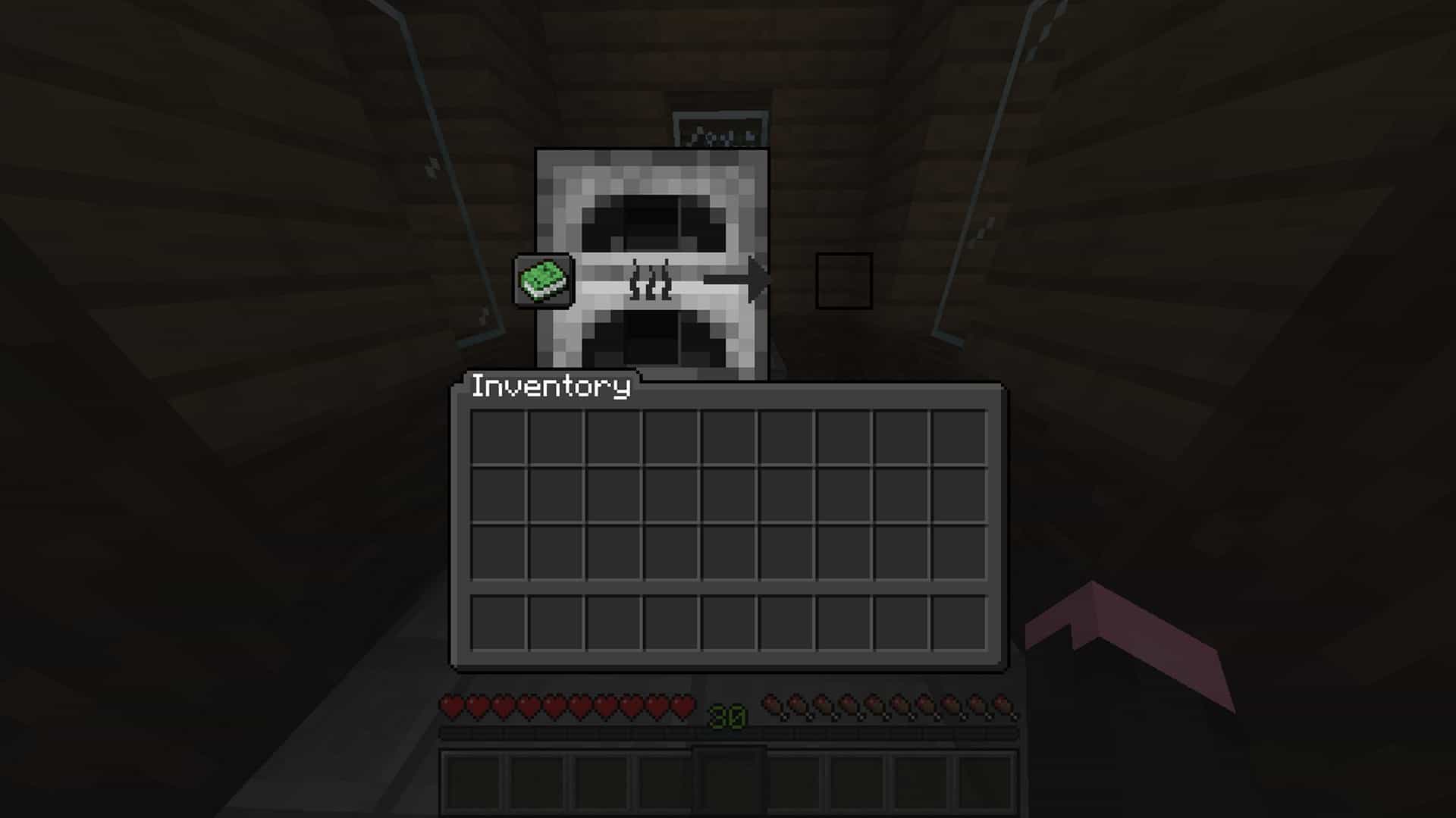
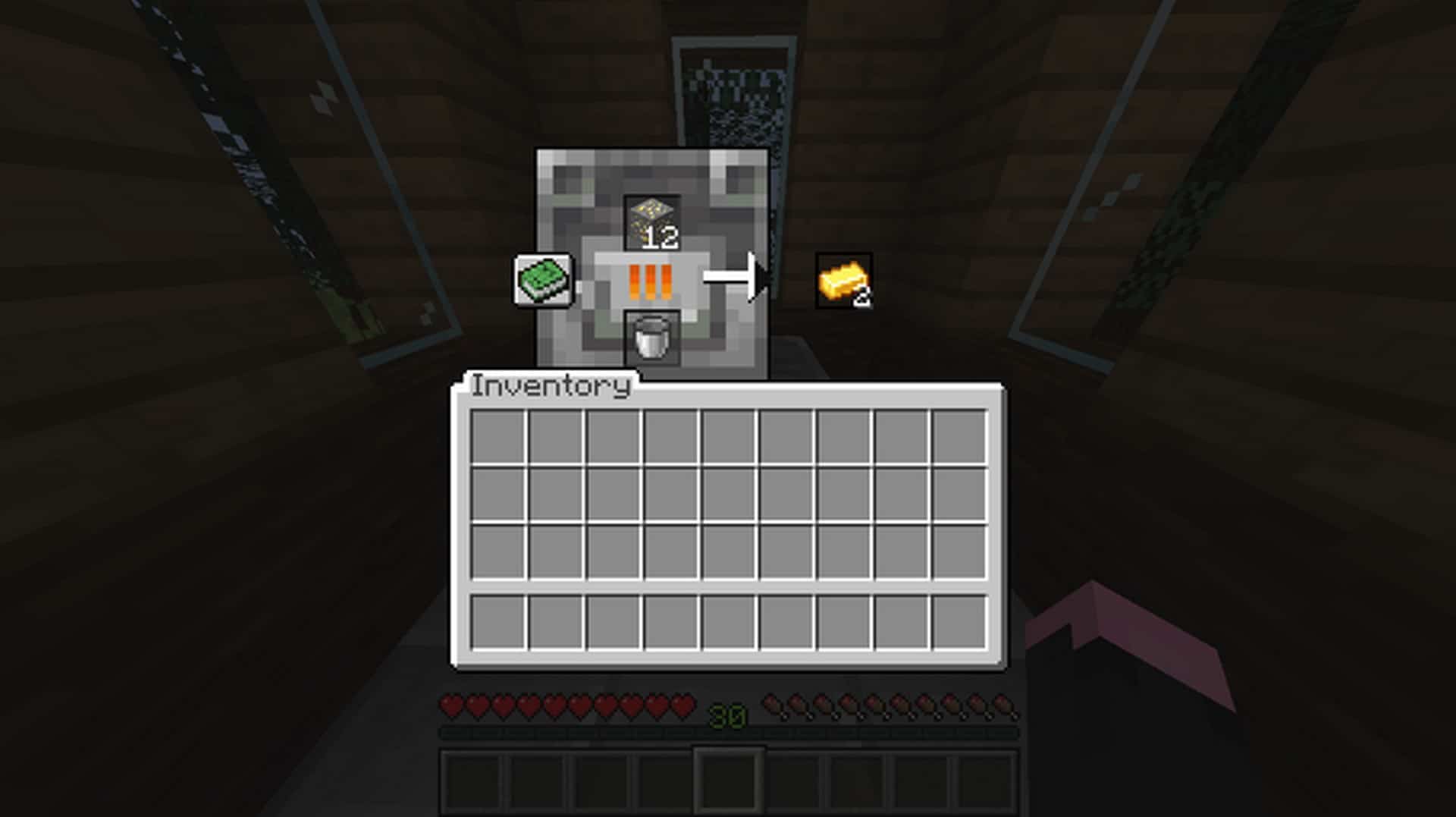
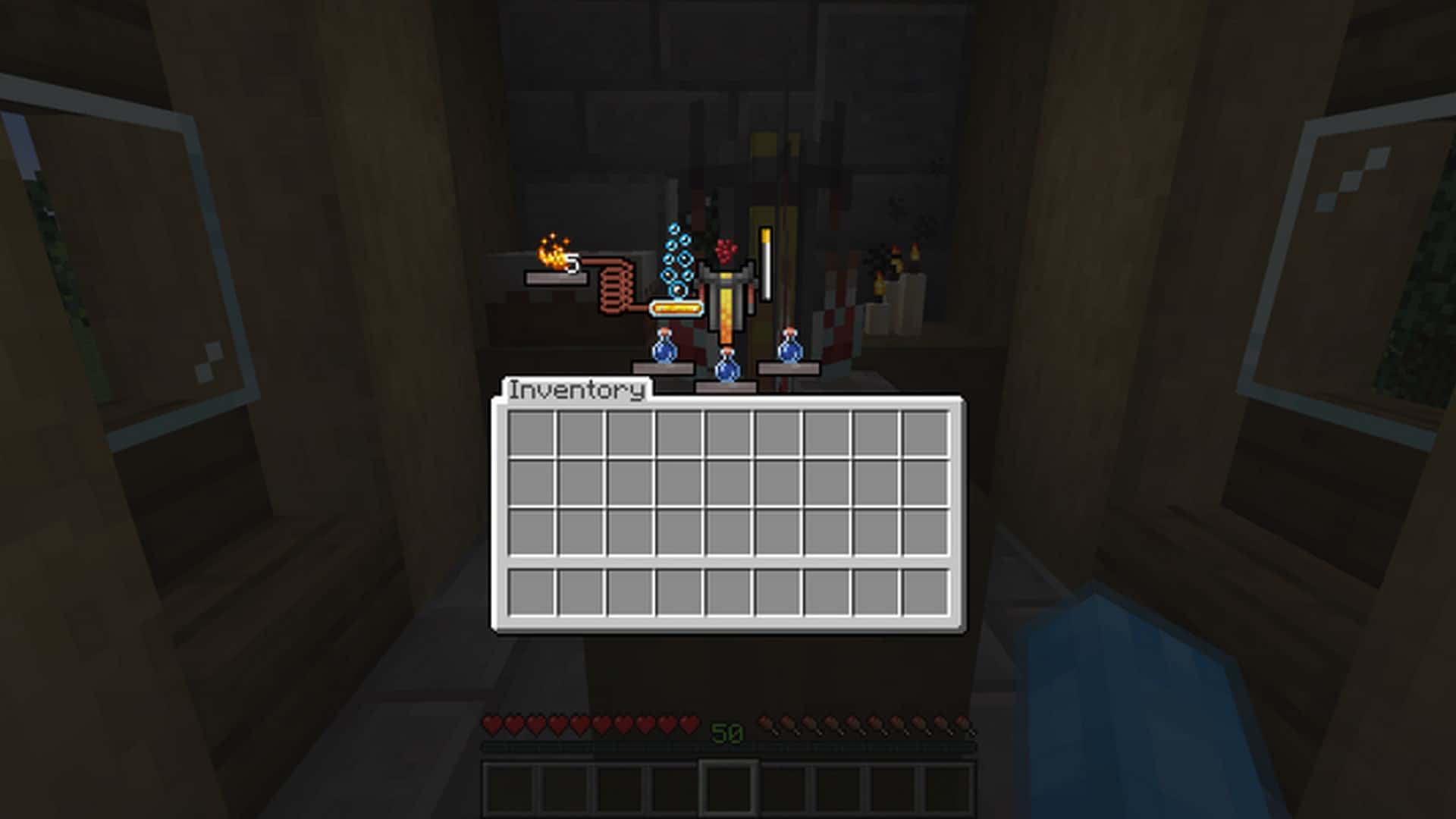
This is a fresh resource pack that transforms the initial graphical user interface to appear to be more in check with the blocks that it represents. Minecraft’s Advanced GUI resource pack offers gamers a more exciting experience in general, especially when you consider the interface feature in the resource pack. Are there times when you face challenges trying to craft and smelt ores, or anything that comes in between the time you are derped out and there is no clue you can think of?
Featured video:
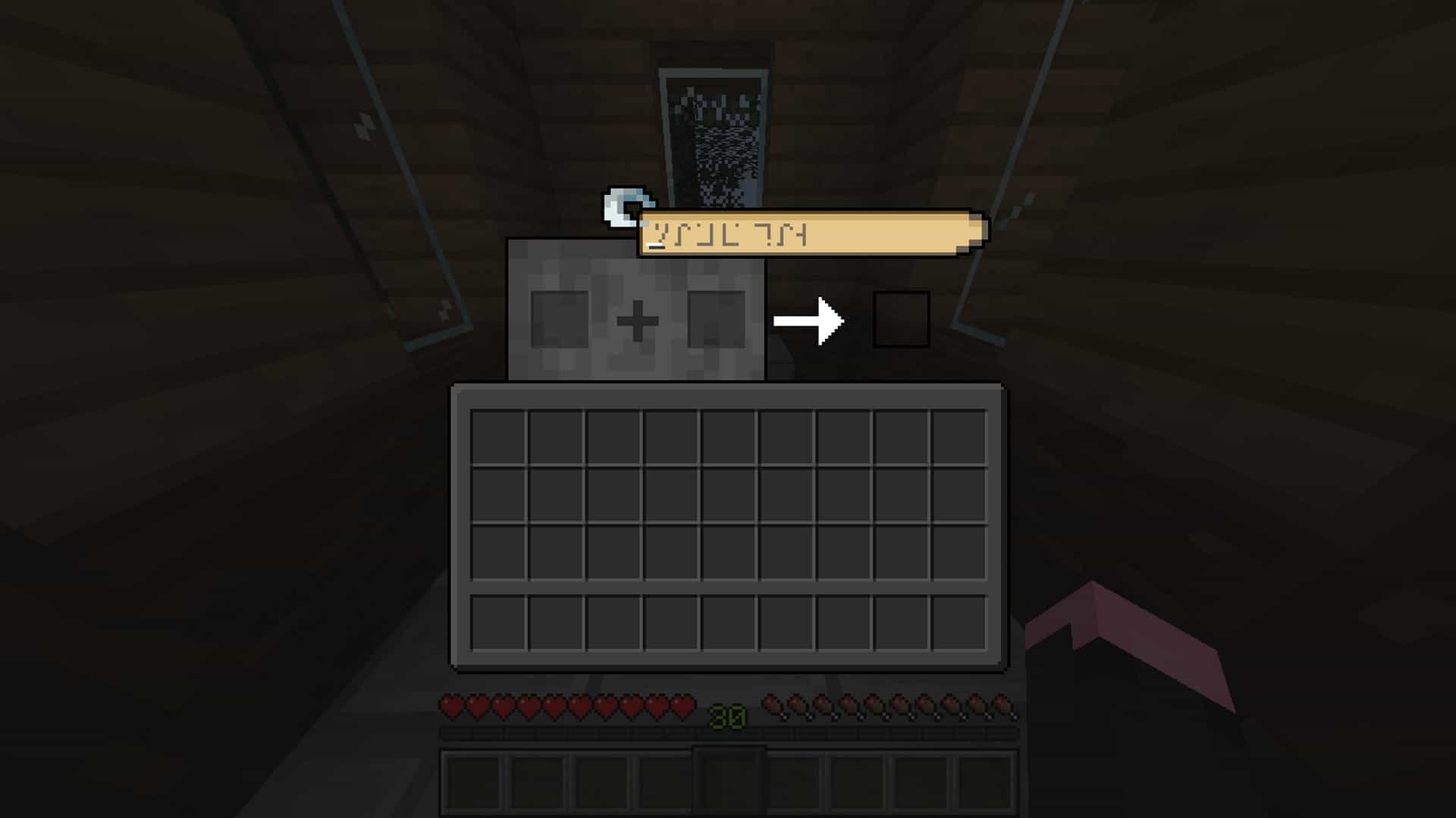
Does it annoy you that the old letters used by the Enhancement Table can be confusing? Well, no need to worry about that anymore; Advanced GUI texture pack has come to make your gameplay experience more comfortable by ensuring everything is as visible to novices as it would be to any other veteran out there. This resource pack guarantees that you won’t experience any issues with the overall GUI and that you’ll have a fun time playing the game with a fully enhanced Minecraft GUI.
Advanced GUI should be compatible with all of these Minecraft versions: 1.17.1 - 1.17 - 1.16.5 - 1.16.4 - 1.16.3 - 1.16.2 - 1.16.1 - 1.16 - 1.15.2 - 1.15.1 - 1.15 - 1.14.4 - 1.14.3 - 1.14.2 - 1.14 - 1.13.2 - 1.13.1 - 1.13 - 1.12.2 - 1.12 - 1.11.2 - 1.11 - 1.10.2 - 1.10 - 1.9.4 - 1.9 - 1.8.9 - 1.8.8 - 1.8.1 - 1.8.6 - 1.8
Advanced GUI — Screenshots

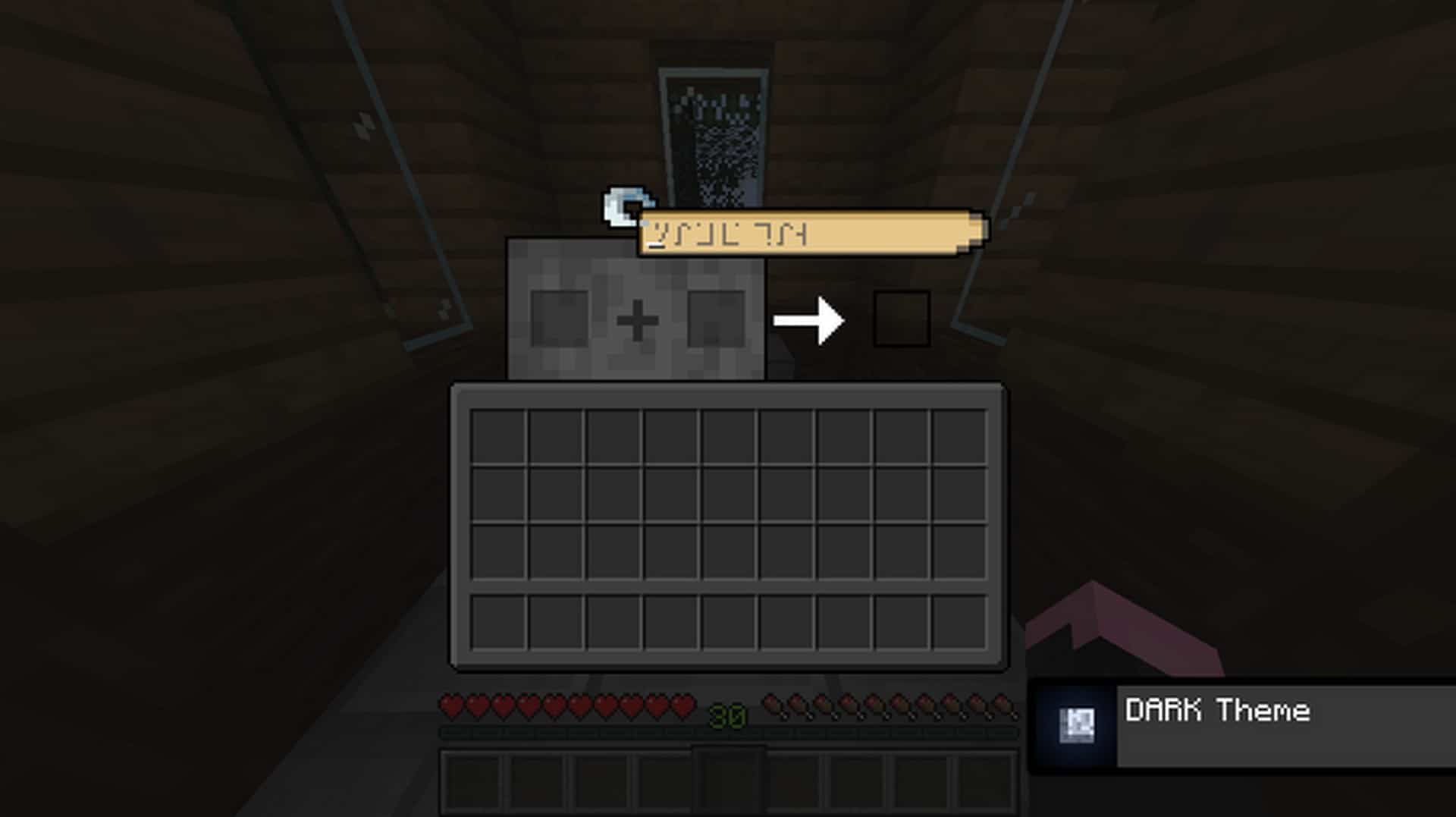
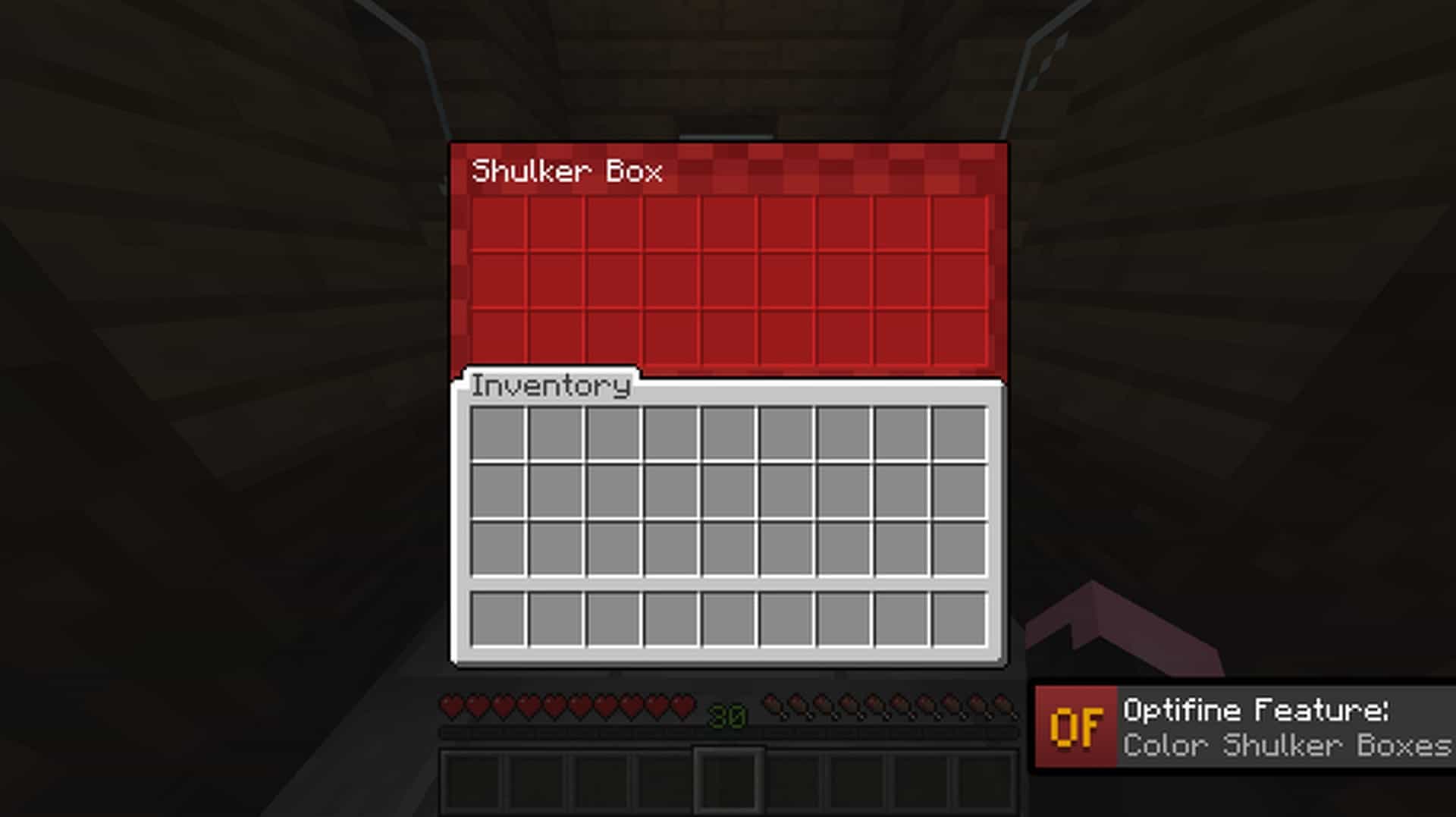
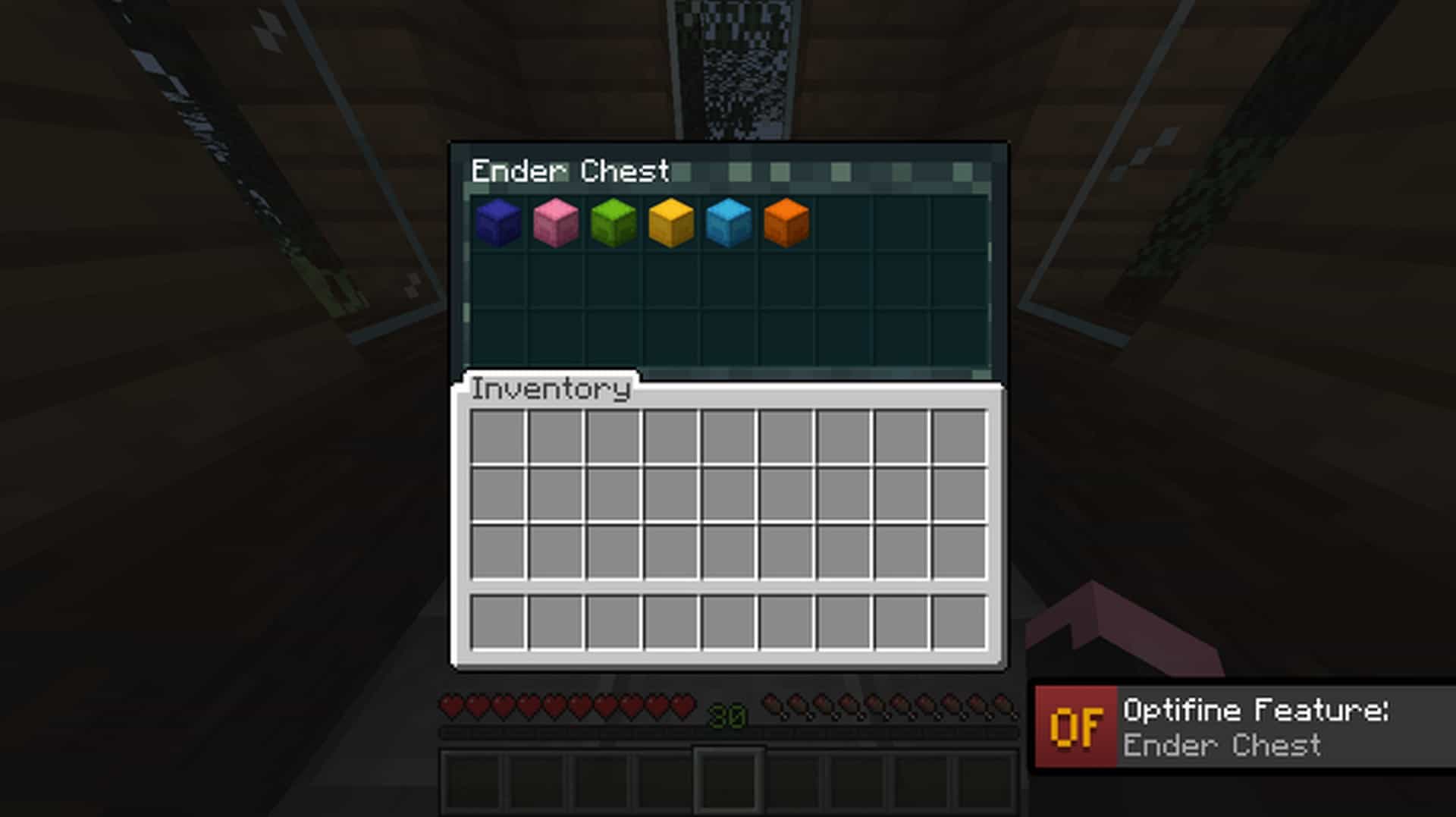
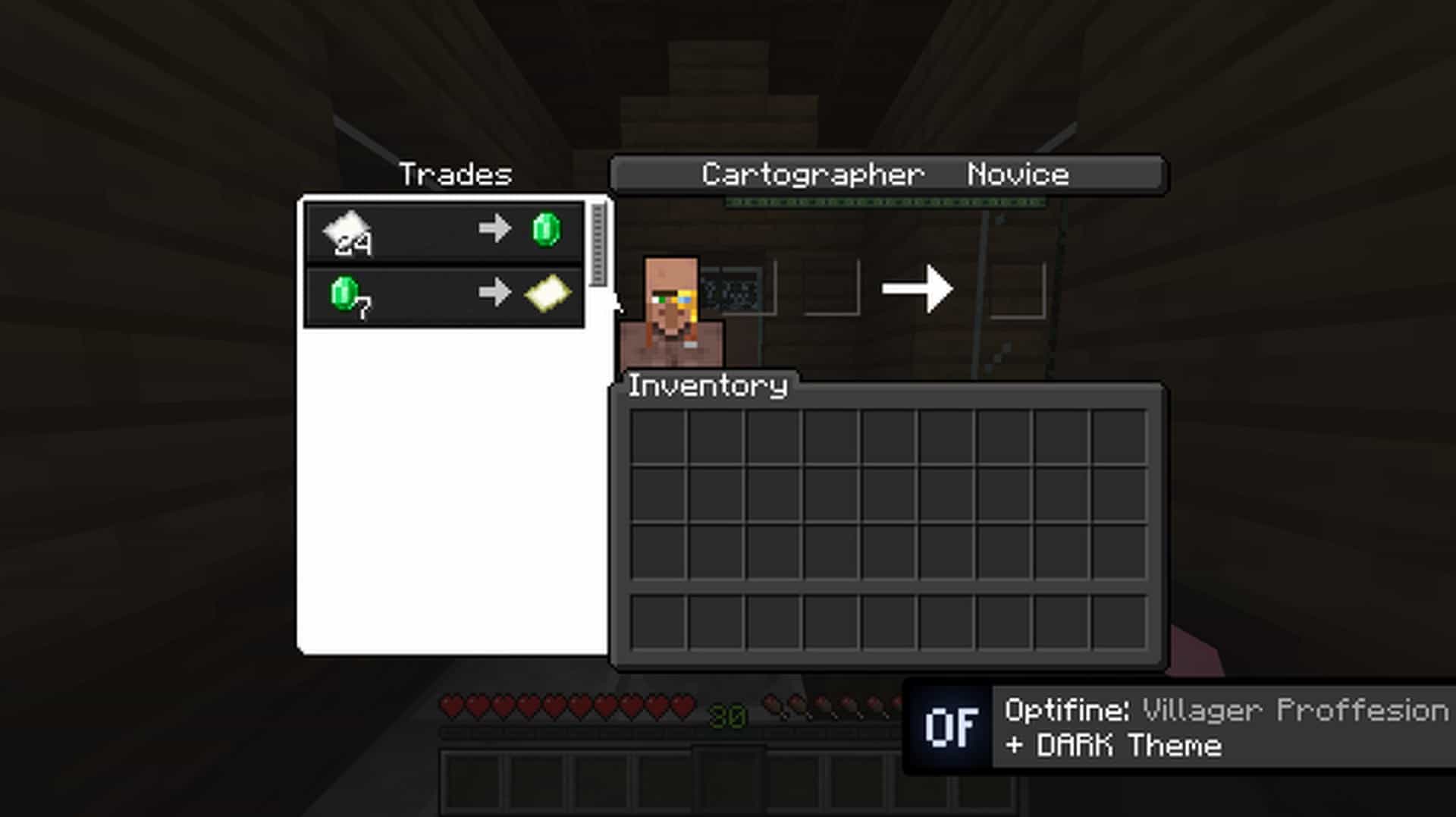
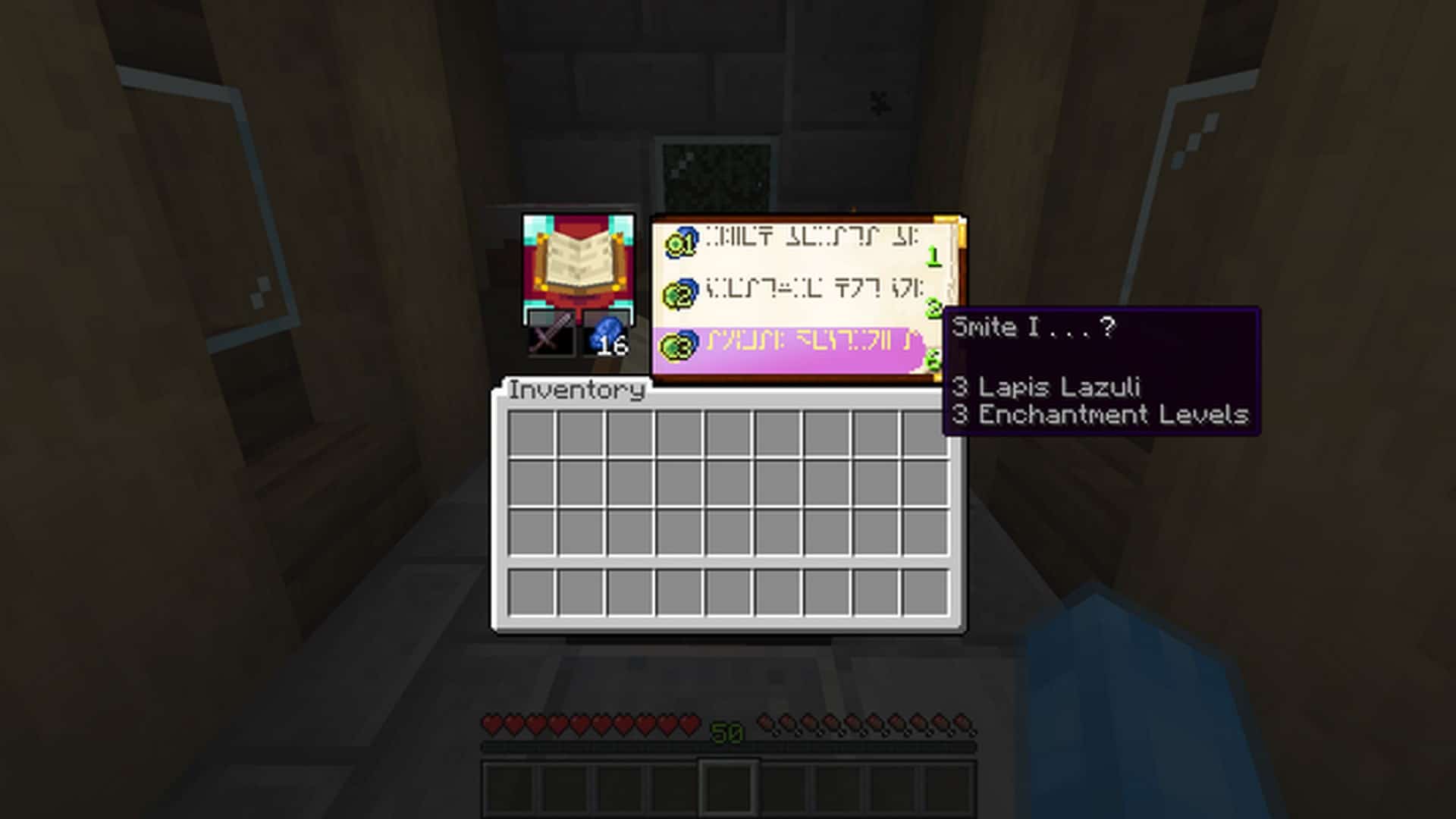
How to install Advanced GUI Resource Pack:
- Most resource packs require Optifine, so be sure to download and install it. – general recommended step for all packs, Optifine is also needed for most shaders
- Download the Advanced GUI texture pack for Minecraft from the download section below. – if there are many different versions, just choose the one you like, is compatible with your version/edition of Minecraft, the one you think your computer can handle in terms of performance.
- Launch the game client through the Minecraft launcher.
- On the main menu, click "Options".
- On the options menu, click "Resource Packs...".
- Click on "Open Resource Pack Folder". – folder titled "resourcepacks" will pop up
- Move the .zip file you downloaded in the first step to the newly opened "resourcepacks" folder.
- Click "Done".
- Click on "Resource Packs..." again.
- Your pack should have appeared in the left window, just hover over it and click on the arrow pointing to the right.
QUICK TIP: Sometimes, when activating a pack, the game may say that the pack is made for a newer or older version of Minecraft. This is just a warning, it does not affect your gameplay in anyway, and you can still activate and enjoy the pack by simply clicking the "Yes" button when prompted.
- Click "Done" again.
- The pack has now been successfully loaded and ready to be used in your world!
Optifine Exclusive Features:
- Optifine is required for Optifine exclusive features (logically).
- Enable Custom GUIs:
ESC > Option > Video Setting > Quality > Custom GUIs: ON
Important:
- Note: In order to remove the obtrusive text from the GUI you must select
English (US, CA, GB, NZ, AU),Español(MX, ES)orFrançais(FR, CA)as your language.
Advanced GUI Texture Pack Download
- We do not modify or edit any resource packs. All resource packs, shaders and tools found on this website are linked directly to official sources rather than hosted on our own servers. We provide only the official download links from the original creators to ensure that your files are safe and secure.
- These official links are updated manually and may occasionally stop working when a new version is released. We work hard to keep everything current so that you have a smooth experience. Please let us know in the comments if you find a link that no longer works.
- Minecraft is a trademark of Mojang Studios and has no official connection to this website. Our goal is simply to share the best creations from the community with other players.
- Please consider leaving a comment or voting for your favorite packs. This feedback helps authors improve their projects over time. You can also support the creators directly by visiting the official links located below the download section.
[16x] [1.17.x] Download Advanced GUI Resource Pack – Vanilla
[16x] [1.17.x] Download Advanced GUI Resource Pack – Optifine
[16x] [1.16.x] Download Advanced GUI Resource Pack – Vanilla
[16x] [1.16.x] Download Advanced GUI Resource Pack – Optifine
[16x] [1.15.x] Download Advanced GUI Resource Pack – Vanilla
[16x] [1.15.x] Download Advanced GUI Resource Pack – Optifine
[16x] [1.14.x] Download Advanced GUI Resource Pack – Vanilla
[16x] [1.14.x] Download Advanced GUI Resource Pack – Optifine
Advanced GUI – DARK Version:
[16x] [1.17.x] Download Advanced GUI Resource Pack – Dark, Vanilla
[16x] [1.17.x] Download Advanced GUI Resource Pack – Dark, Optifine
[16x] [1.16.x] Download Advanced GUI Resource Pack – Dark, Vanilla
[16x] [1.16.x] Download Advanced GUI Resource Pack – Dark, Optifine
[16x] [1.15.x] Download Advanced GUI Resource Pack – Dark, Vanilla
[16x] [1.15.x] Download Advanced GUI Resource Pack – Dark, Optifine
[16x] [1.14.x] Download Advanced GUI Resource Pack – Dark, Vanilla
[16x] [1.14.x] Download Advanced GUI Resource Pack – Dark, Optifine
Older versions:
[16x] [1.13.x] Download Advanced GUI Resource Pack
[16x] [1.12.x – 1.8.x] Download Advanced GUI Resource Pack
Curseforge: download starts automatically after a few seconds;
Mediafire: click the big blue button with the text "DOWNLOAD";
Google Drive: in the top right corner you will see a small download icon (down arrow), click it and the download should start;

136 votes
Look.. 136 users have already liked this pack. Give a diamond if you like it too!


martin
when i click on villager the textures are shifted
MaykiPE
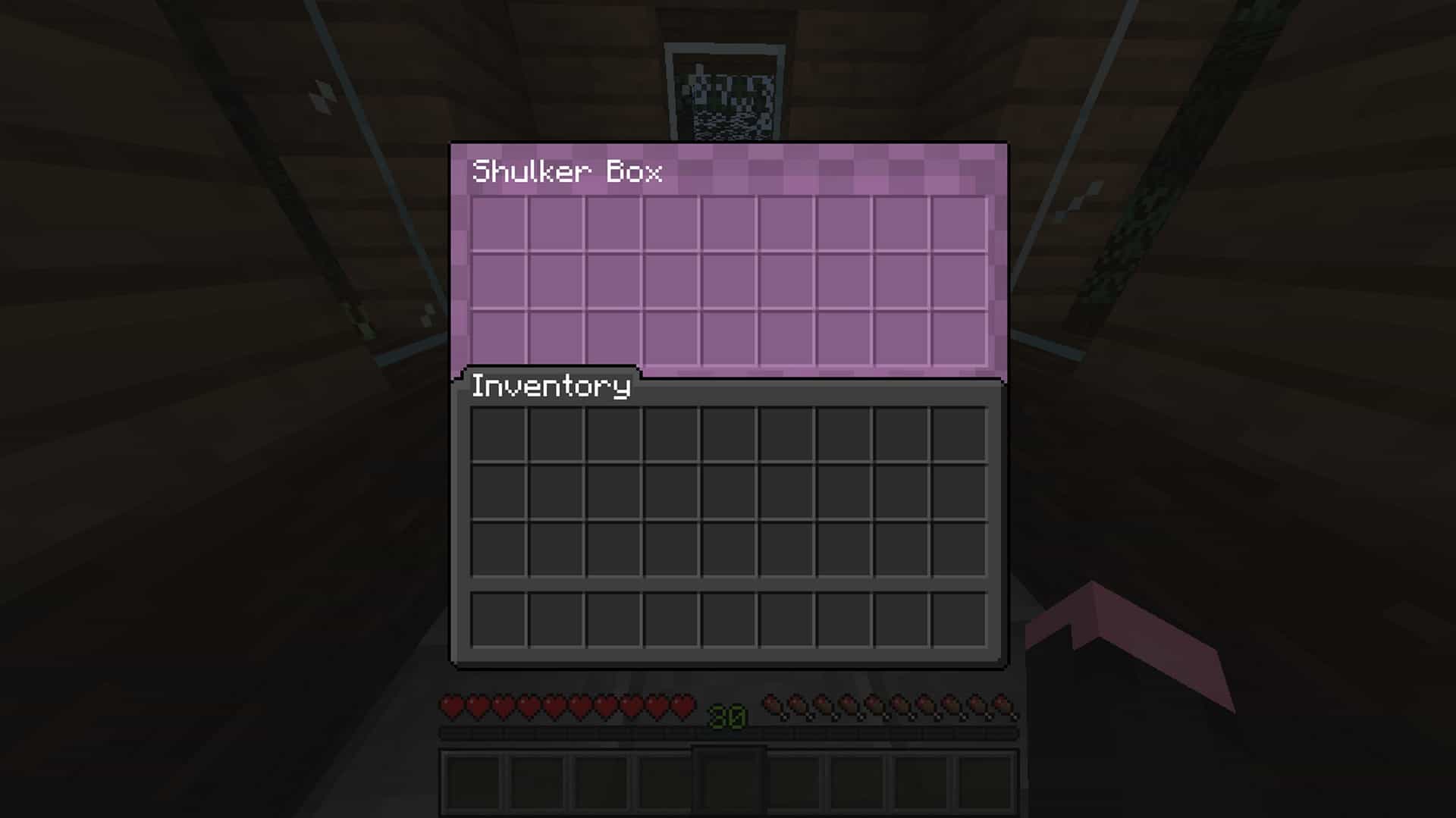
I have optifine, but the shulker textures don’t change color
Big Smoke
Its just so good! nice work
7ra5hcan
I have a problem that the enderchest texture is a normal chest even though I have optifine, Its still peview version(1.17.1. Do I need a full version or something else?
WLAD
Will u update it for 1.17?
If yes then when?
Kaji
Cleann
headhunter
Why the ender chest texture isnt showing , its shows the normal texture for chest
dodoy
you need optifine