While Minecraft is an ever-expansive and fun game to play in its original variant, a lot more can be added to it by installing mods and resource packs. One of the most effective and useful tools (mods) you can install – whether you want to keep the original flavor or add some uniqueness to your game – is the Optifine mod. Optifine is not a resource pack in itself. It does not change any textures in the game. It is, instead, a tool that allows you to adjust Minecraft to increase performance or visuals to your liking. For instance, it provides new settings in the menus that allow you to more freely adjust rendering distance and other factors that might affect how well your computer can run the game. It also allows you to use various resource packs with custom features. If you use HD resource packs and have seen major frame rate drops, see serious lag spikes in your system, or otherwise just need an FPS boost, Optifine HD will provide exactly what you are looking for.
Featured video:
Optifine can be used in both single player games and multiplayer servers. Be warned, though, Optifine HD only works in multiplayer games if the server’s host also has Optifine HD installed on the server. If this is not the case, Optifine will be disabled and you will not be able to use it. Another warning that comes with this is that some of the steps you can take to increase your frame rate will also make Minecraft less visually appealing to look at. You can disable clouds, the sky, stars, fog, and a number of other functions that make the game more visually appealing. All in all, Optifine HD is probably the best way to take more complete control of your Minecraft experience. You can adjust how textured and detailed everything is, from bare bones to top of the line graphics, based on what your personal computer can handle.
OptiFine should be compatible with all of these Minecraft versions: 1.21.11 - 1.21.10 - 1.21.9 - 1.21.8 - 1.21.7 - 1.21.6 - 1.21.5 - 1.21.4 - 1.21.3 - 1.21.2 - 1.21.1 - 1.21 - 1.20.6 - 1.20.5 - 1.20.4 - 1.20.3 - 1.20.2 - 1.20.1 - 1.20 - 1.19.4 - 1.19.3 - 1.19.2 - 1.19.1 - 1.19 - 1.18.2 - 1.18.1 - 1.18 - 1.17.1 - 1.17 - 1.16.4 - 1.16.3 - 1.16.2 - 1.16.1 - 1.16 - 1.15.2 - 1.15.1 - 1.15 - 1.14.4 - 1.14.3 - 1.14.2 - 1.14 - 1.13.2 - 1.13.1 - 1.13 - 1.12.2 - 1.12 - 1.11.2 - 1.11 - 1.10.2 - 1.10 - 1.9.4 - 1.9 - 1.8.9 - 1.8.8 - 1.8.1 - 1.8.6 - 1.8
How to install Optifine:
Guide last updated: 2022-07-22
Before we proceed with installing Optifine, you also need to have Java installed on your device in order to be able to run the Optifine installer. Java is available for Windows, Linux, Mac OS X, and Solaris. Get Java here.
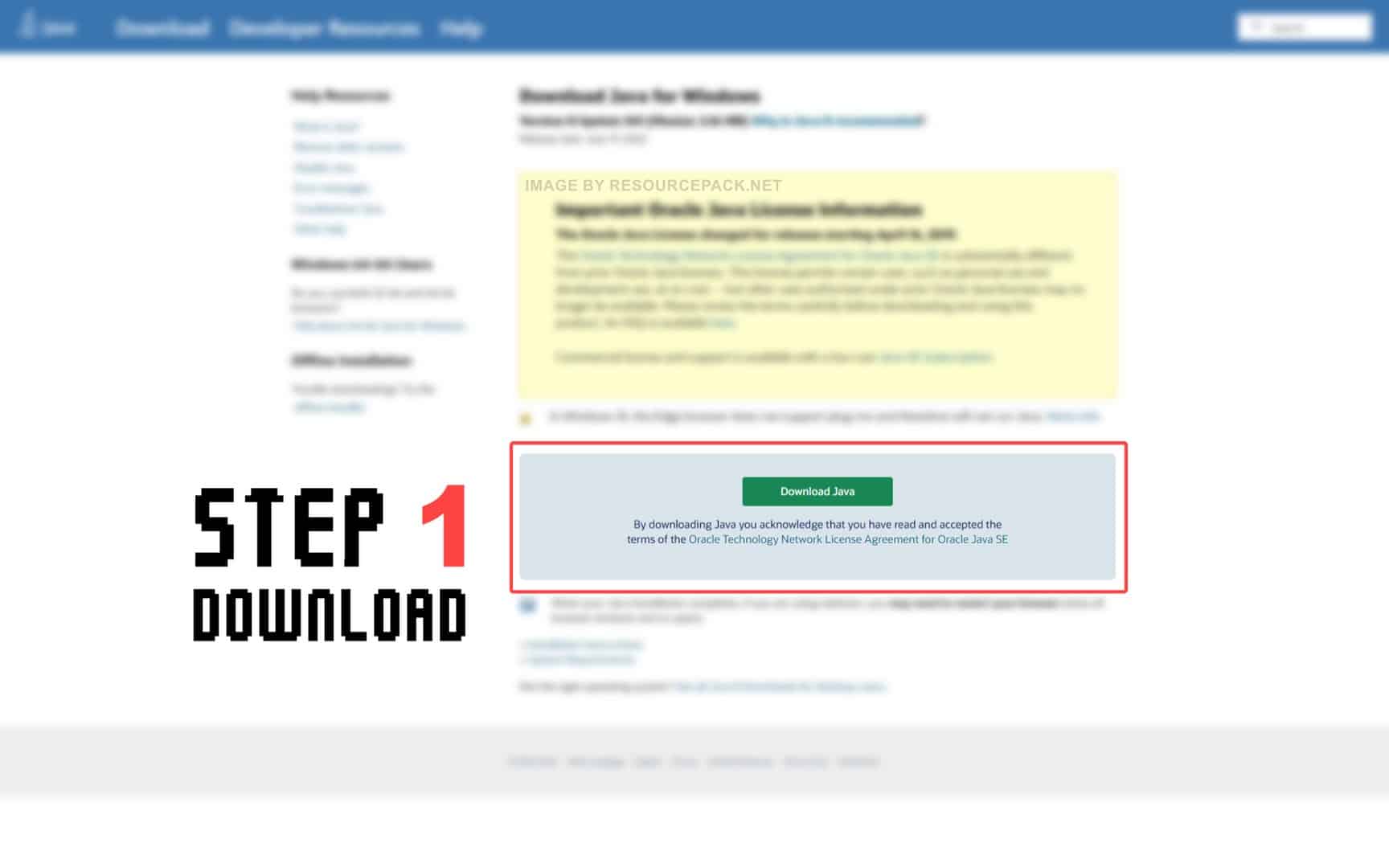
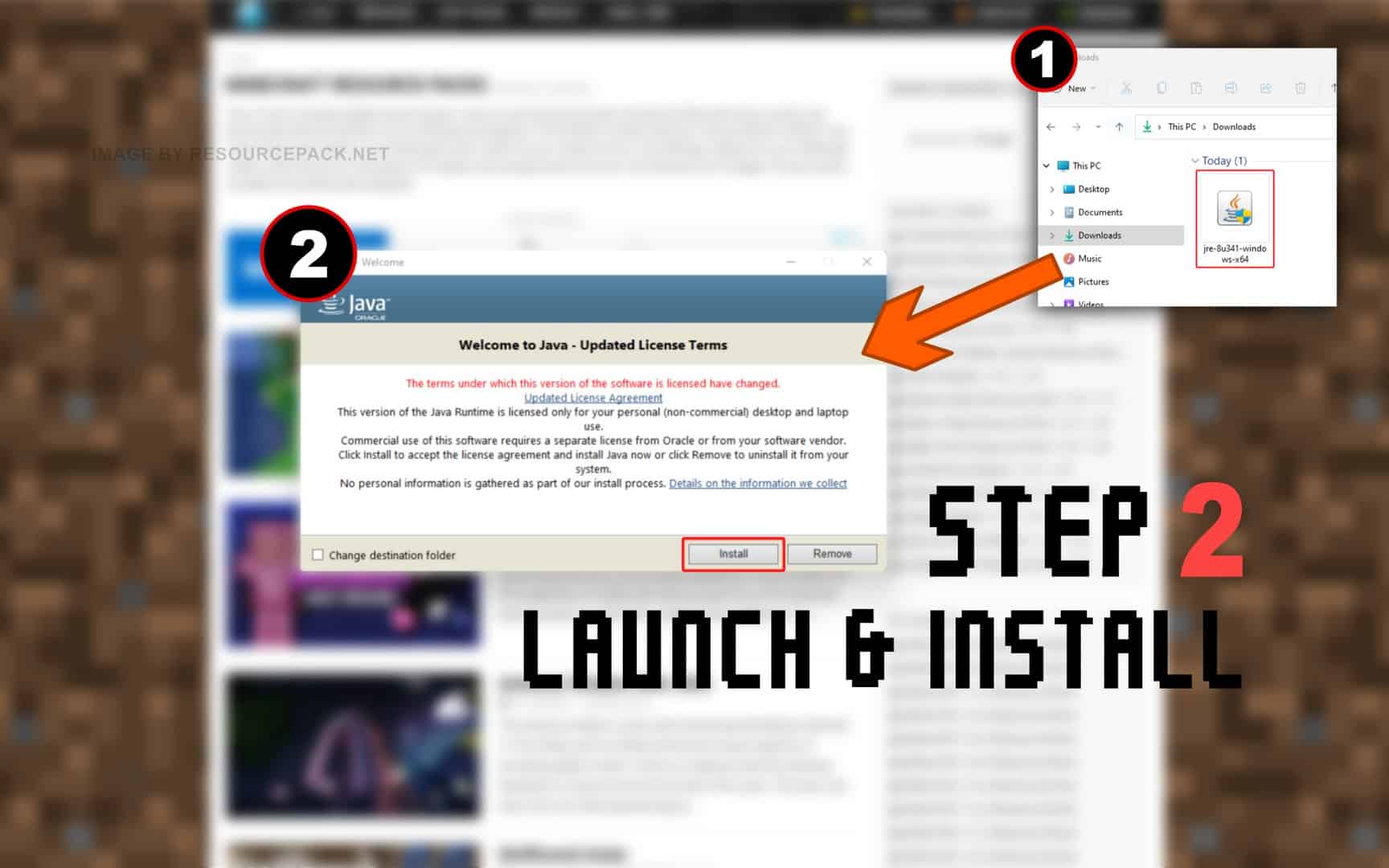
Quick Java Installation Guide:
Click the image to open it full size in a new tab.
- Download Java from the official website here.
- Run the file you just downloaded and click Install.
NOTE: Optifine will only work with the Java Edition of Minecraft. Optifine does not currently work with Bedrock or any other edition.
And now.. OptiFine:
Please follow each step carefully if you have never installed OptiFine before.
- In the download section (located directly below this guide), you will find a link to the official Optifine website. Click on this link and you should be redirected to the developer’s official website.
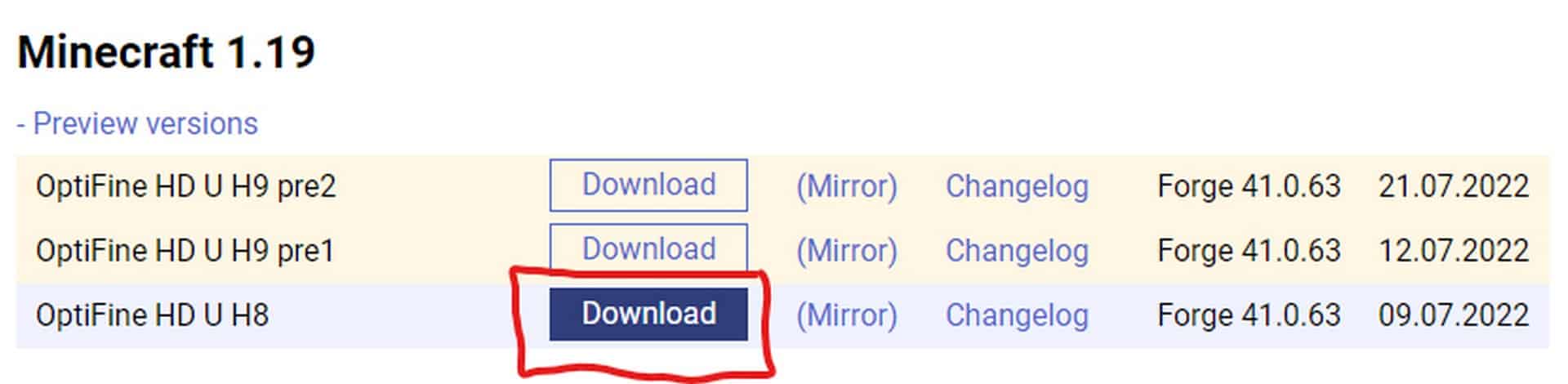
- On the optifine website, you will see many different labels. First make sure you find the correct “Minecraft Version Label”. If you’re playing Minecraft 1.18.2, look for the appropriate label, then simply select one of the versions of Optifine under that label (we strongly recommend that you always choose the OptiFine HD Ultra editions. They usually have the most features) and click Download (or Mirror).
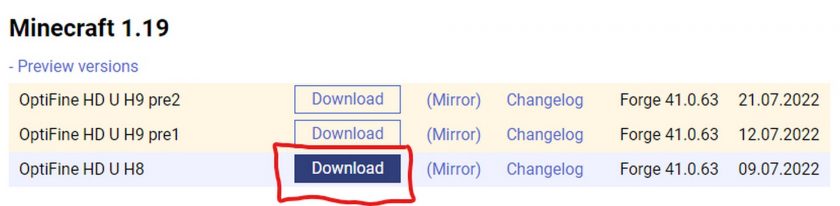
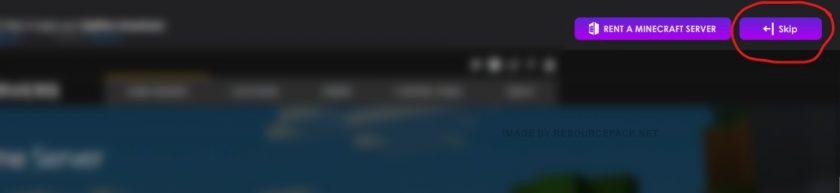
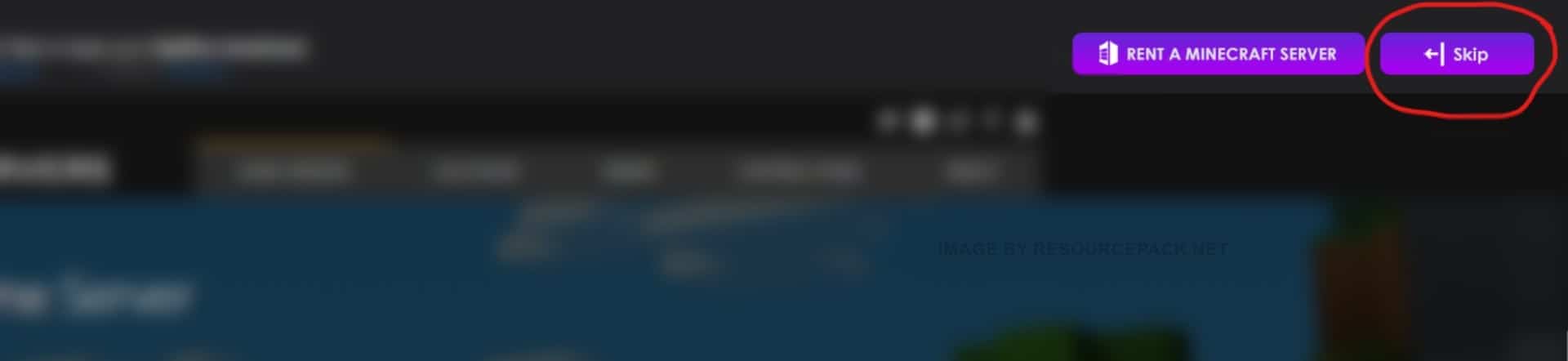
- If you clicked the “Download” button (step 2), then most likely you will first be redirected to an sponsor page with a short timer of 5 seconds. Just wait and click “Skip”. If you clicked the “Mirror” button (step 2), you will be redirected directly to the download page.
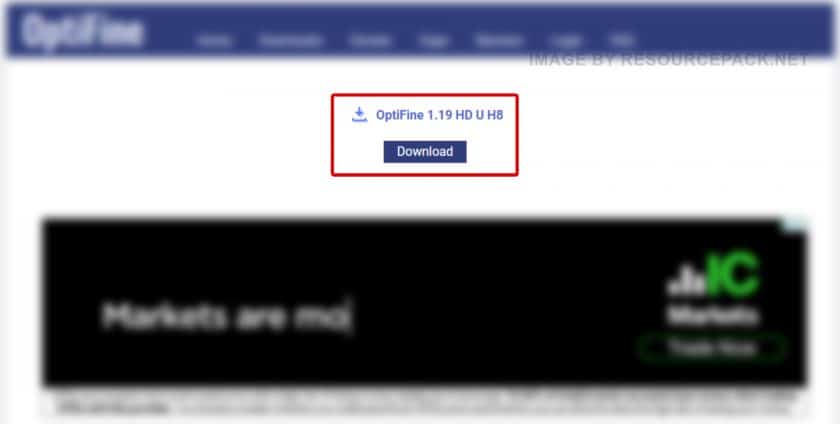
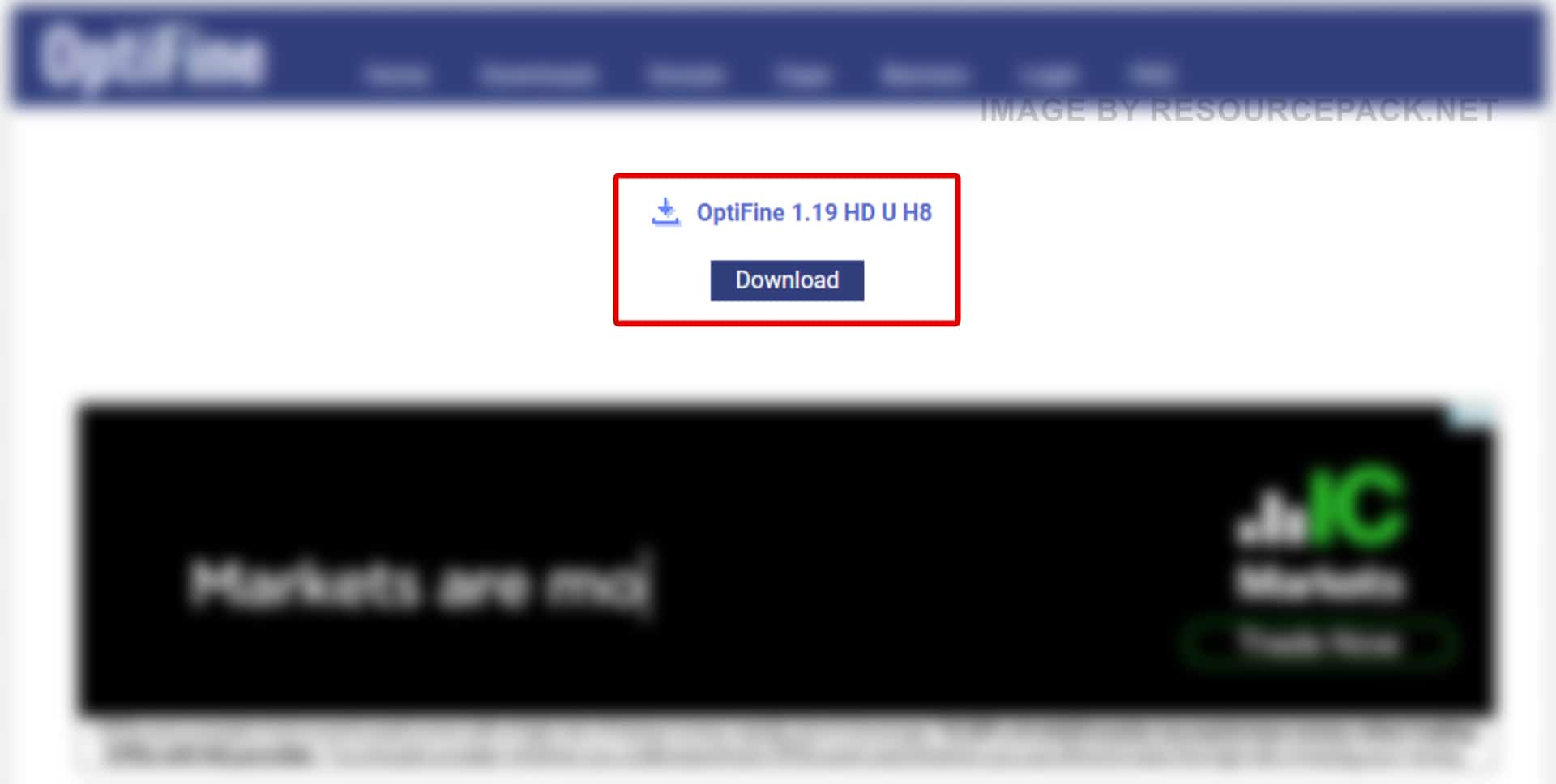
- Now, once you are on the download page, click “Download” again.
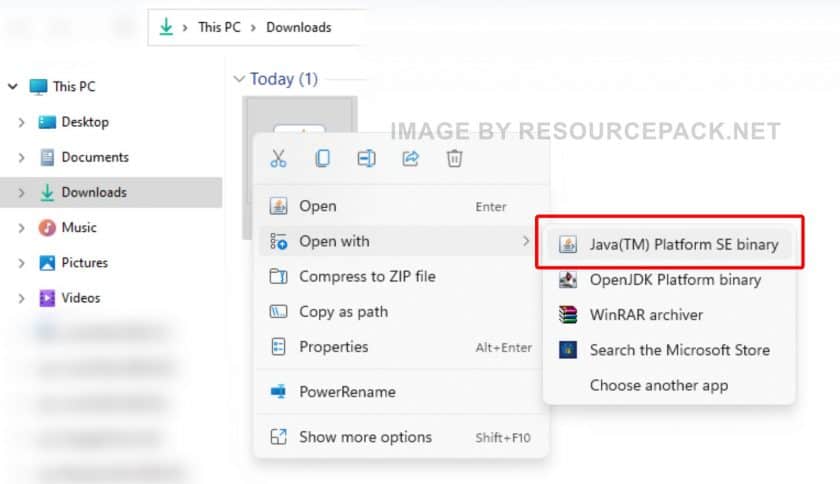
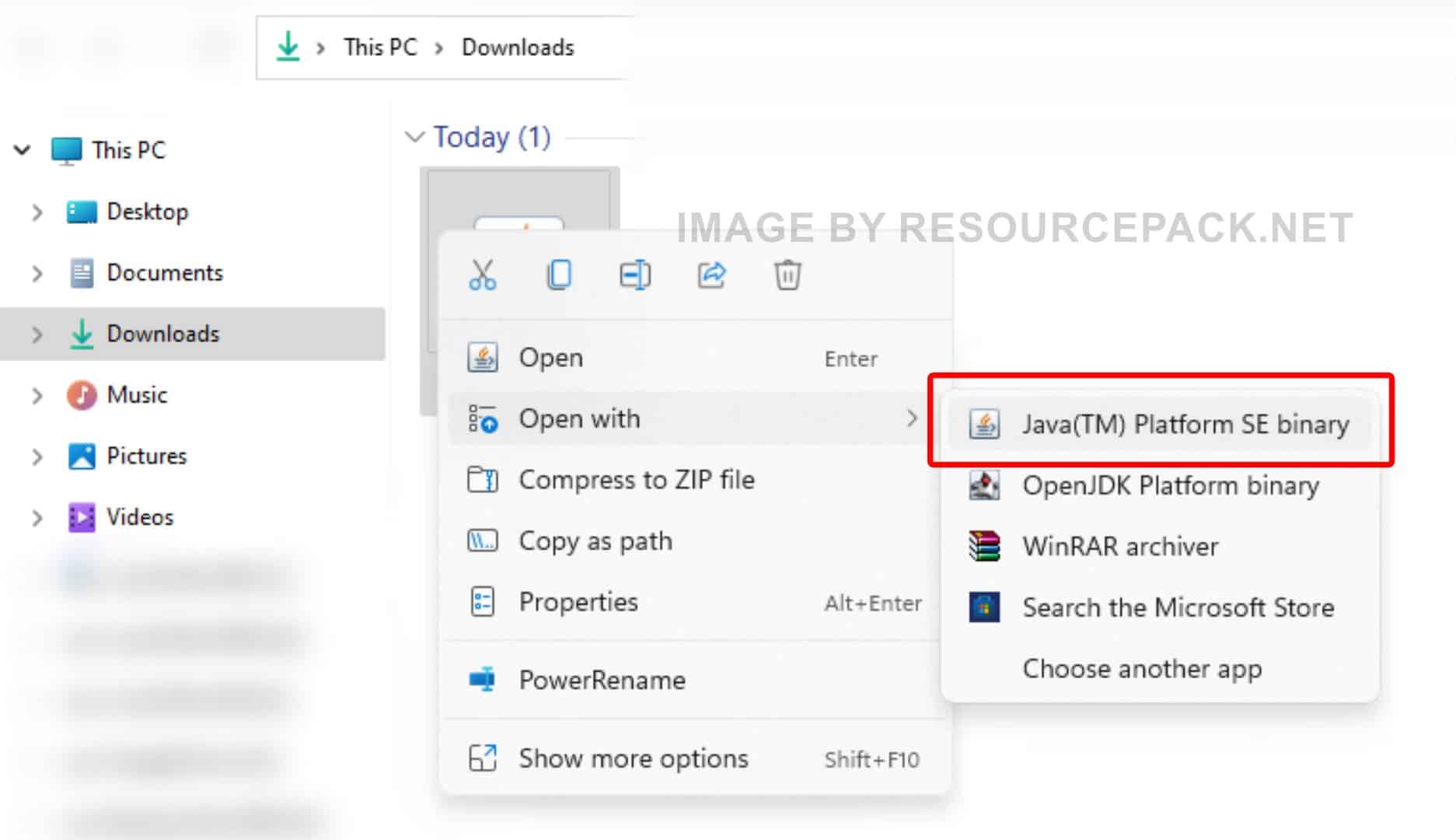
- Right-click on the newly downloaded Optifine installer file (should be in .jar format), select “Open With”, and then click “Java (TM) Platform SE binary”.
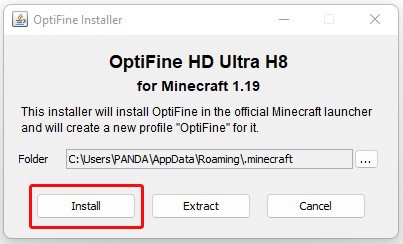
- A small installer window will appear, just click “Install”. After a while, the message “OptiFine is successfully installed.” will pop-up.
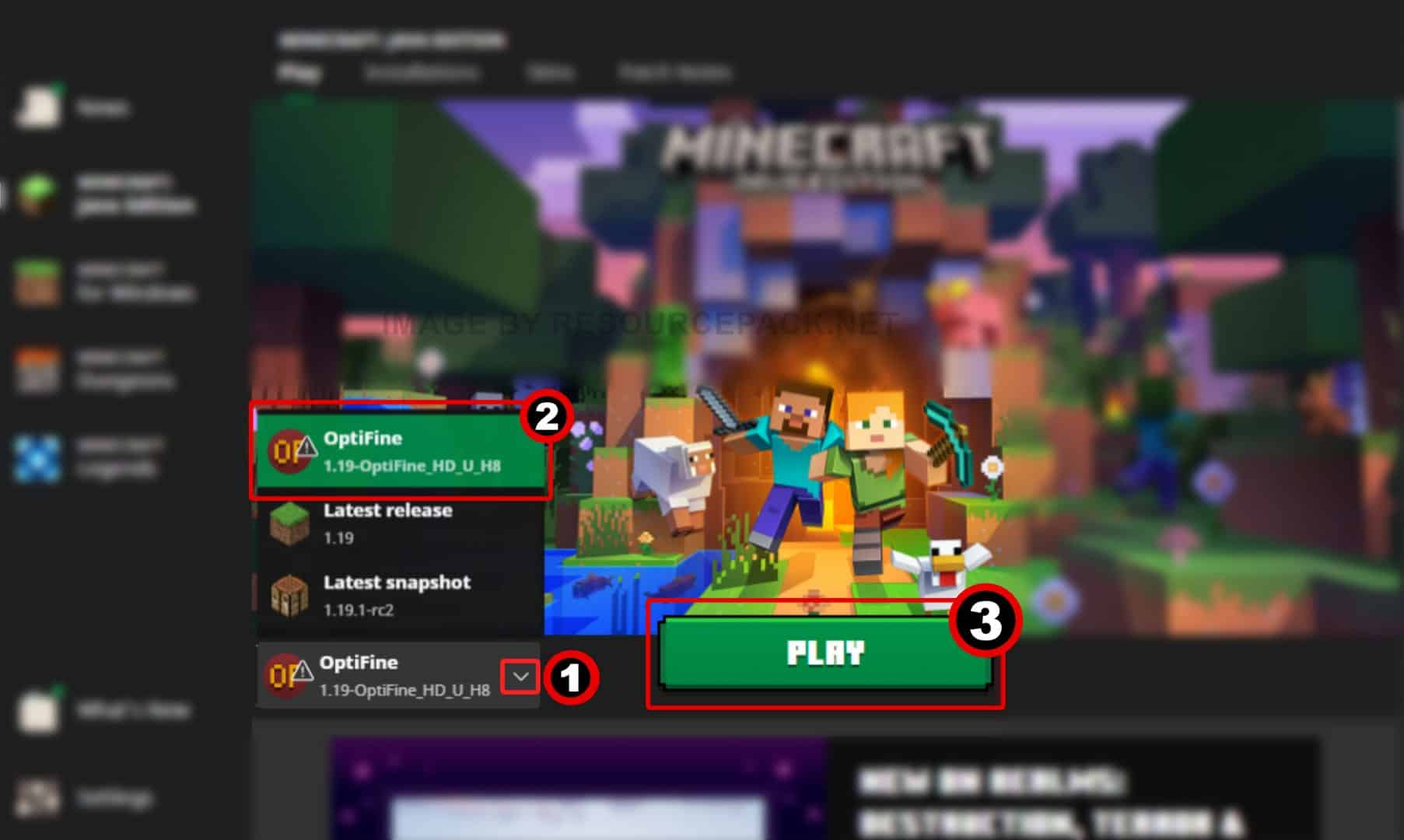
- Run the Minecraft launcher and click on the small arrow to the left of the green “PLAY” button. You will notice that there is a new version titled 1.19-OptiFine_HD_U_H8 (it may be different in your case depending on which version of Minecraft you are using and which version of optifine you have installed). Select this Minecraft Optifine version and click “PLAY”.
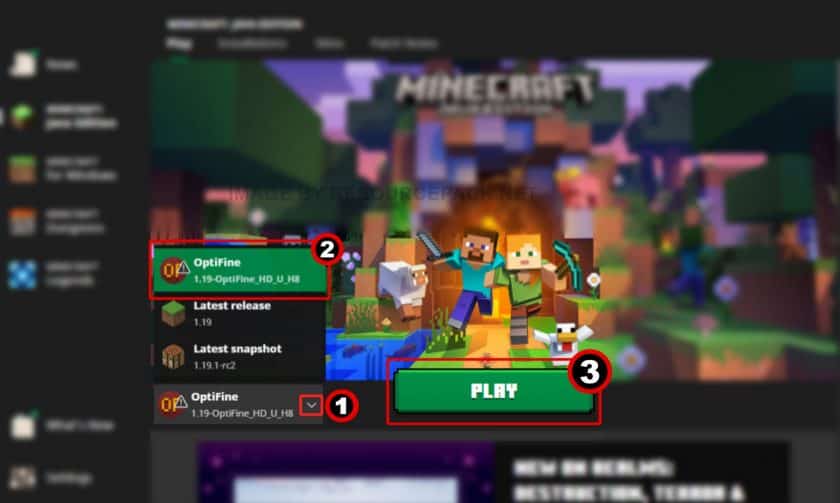
- Done. Now you have a version of Minecraft with Optifine. We hope the guide was useful to you, we tried to describe everything in as much detail as possible with screenshots so that you can understand it better. If you still have problems with the installation, leave your question below in the comments – either the administration or site visitors will definitely help you. But there should be no problems if you carefully read everything and do as it is written in the guide.
OptiFine Download
- We do not modify or edit any resource packs. All resource packs, shaders and tools found on this website are linked directly to official sources rather than hosted on our own servers. We provide only the official download links from the original creators to ensure that your files are safe and secure.
- These official links are updated manually and may occasionally stop working when a new version is released. We work hard to keep everything current so that you have a smooth experience. Please let us know in the comments if you find a link that no longer works.
- Minecraft is a trademark of Mojang Studios and has no official connection to this website. Our goal is simply to share the best creations from the community with other players.
- Please consider leaving a comment or voting for your favorite packs. This feedback helps authors improve their projects over time. You can also support the creators directly by visiting the official links located below the download section.
Java Edition:
Download OptiFine from Official Website
Curseforge: download starts automatically after a few seconds;
Mediafire: click the big blue button with the text "DOWNLOAD";
Google Drive: in the top right corner you will see a small download icon (down arrow), click it and the download should start;

16,972 votes
Look.. 16972 users have already liked this. Give a diamond if you like it too!


Ann
When will optifine 1.21.11 be update ? I want to download optifine but the recent update was 1.21.10
allums
what can I do for 1.12.2 opifine not working
emma
java tm doesn’t come up when i press open with
Admin
Have you installed Java?
Cain
Im having this issue too, i have it installed
a
+1
b
+2
c
+3
cooper
have u figured it out, im having same issues
Tachitas
for 1.8.9 there are more then 1 options that are not previews how do i know which one is correct?
Admin
For 1.8.9, just use OptiFine HD U M5 – it’s the newest stable version, so no need to scroll through the others.
Em
I get the error message saying “cannot find minecraft 1.21.4, you must download and start minecraft 1.21.4 in the official launcher” but i have this version of minecraft
tj
same. did u ever figure it out??
tj
nvm i figured it out
DavidZ
Care to share the fix for the rest of us?
DavidZ
ok, figured it out. For the next person who has this issue: I had downloaded optifine c1.21, but had mincraft 1.21.10. The installer is quite picky about the exact version.
YazzyM
i love you david
narhaniel
I want texture pack my would minecraft