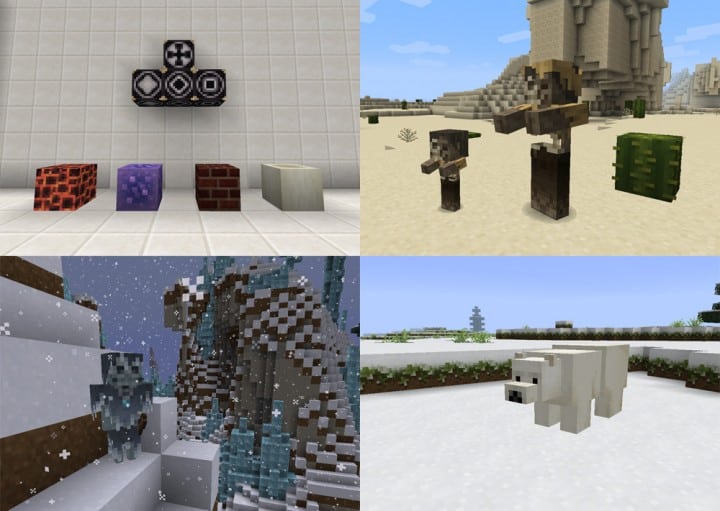
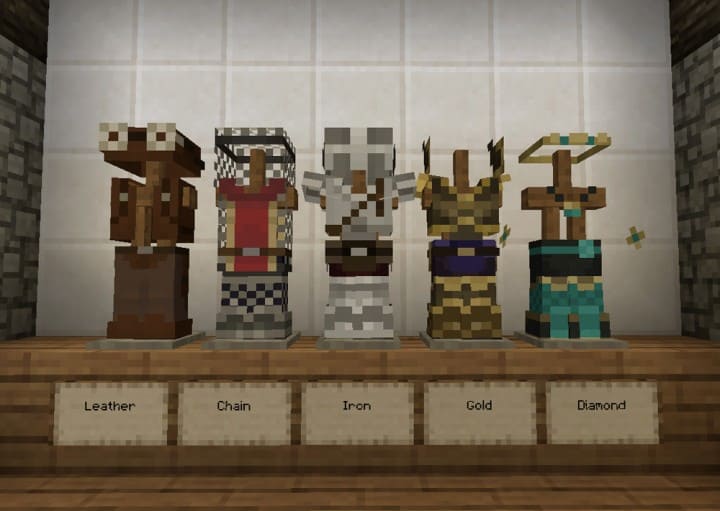
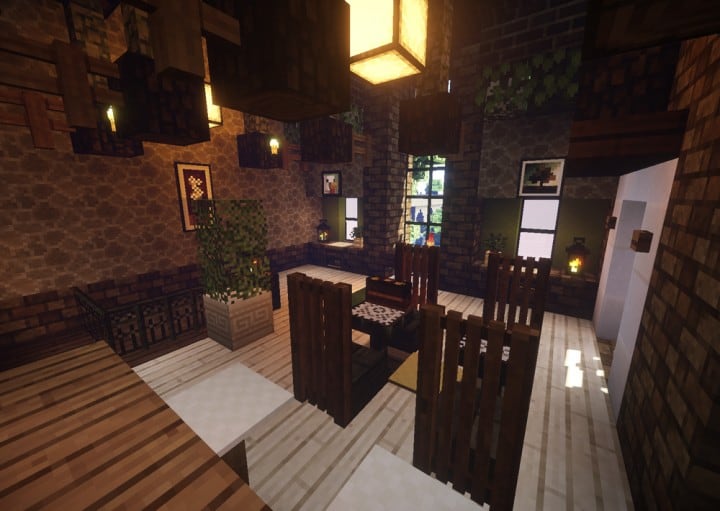
Mizuno’s 16 Craft resource pack enhances the world of Minecraft with impressive visuals. This texture pack will become a favorite of many players because of how well the textures in this pack look on screen. The fact that this resource pack is able to keep the graphics looking great without being over the top is a monumental accomplishment that few resource packs are able to achieve. Low-resolution resource packs often fail to make their textures visually pleasing. Because of these lack luster textures, most low-resolution resource packs are unable to take the Minecraft visual world to the next level. You can often find a lot of noise present in these texture designs. Noise found in these textures take away from the overall appeal and appearance of these low-resolution resource packs. The Mizuno’s 16 Craft succeeds where many other low-resolution packs fail.
Featured video:
This particular pack provides beautiful graphics that are engaging by getting rid of many noise related problems that are prevalent in packs of this type. When you load Minecraft after installing the Mizuno 16 Craft resource pack you are greeted with amazing visuals. The simple design of the installed textures are streamlined and beautiful. The resource pack reveals a magnificent color pallet that features art influenced textures. With clean and noiseless textures this pack is able to reduce eye strain while providing an enjoyable gaming experience. This is one of the best features of the resource pack. Beyond changing Minecraft’s typical textures the Mizuno’s 16 Craft makes changes to the standard user interface. The Mizuno 16 Craft uses a 16×16 resolution like the name of the resource pack suggests. Because of this and the resource pack’s low screen resolution many players are able to enjoy this game with no difficulties. This resource pack allows people with low-end computers to enjoy this pack as much as someone with a high-end computer can.
Mizuno's 16 Craft should be compatible with all of these Minecraft versions: 26.1 - 1.21.11 - 1.21.10 - 1.21.9 - 1.21.8 - 1.21.7 - 1.21.6 - 1.21.5 - 1.21.4 - 1.21.3 - 1.21.2 - 1.21.1 - 1.21 - 1.20.6 - 1.20.5 - 1.20.4 - 1.20.3 - 1.20.2 - 1.20.1 - 1.20 - 1.19.4 - 1.19.3 - 1.19.2 - 1.19.1 - 1.19 - 1.18.2 - 1.18.1 - 1.18 - 1.17.1 - 1.17 - 1.16.5 - 1.16.4 - 1.16.3 - 1.16.2 - 1.16.1 - 1.16 - 1.15.2 - 1.15.1 - 1.15 - 1.14.4 - 1.14.3 - 1.14.2 - 1.14 - 1.13.2 - 1.13.1 - 1.13 - 1.12.2 - 1.12 - 1.11.2 - 1.11 - 1.10.2 - 1.10 - 1.9.4 - 1.9 - 1.8.9 - 1.8.8 - 1.8.1 - 1.8.6 - 1.8 - Bedrock Edition - PE
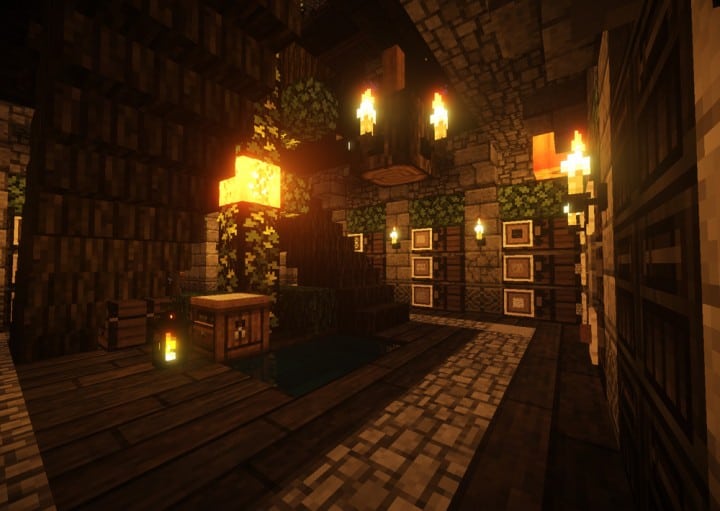
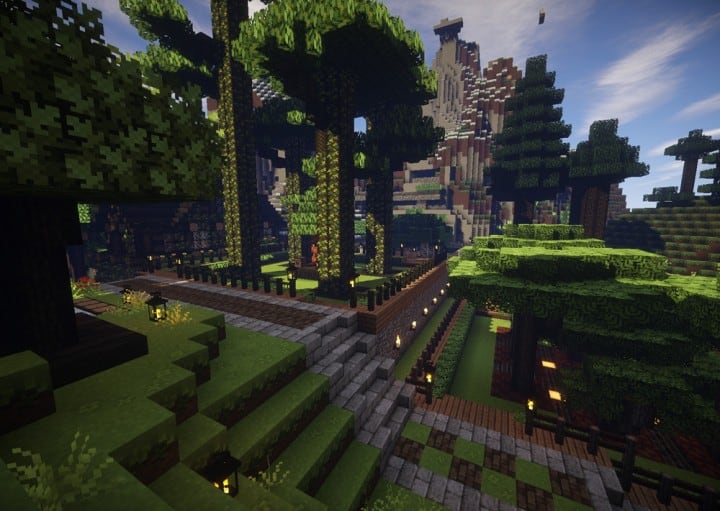
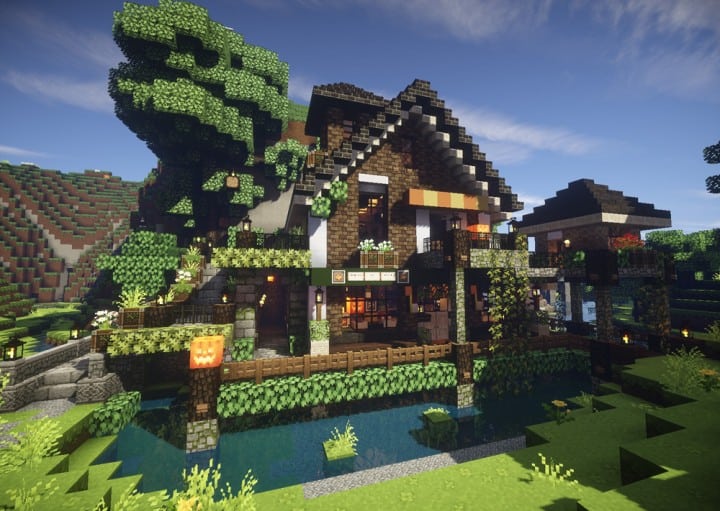
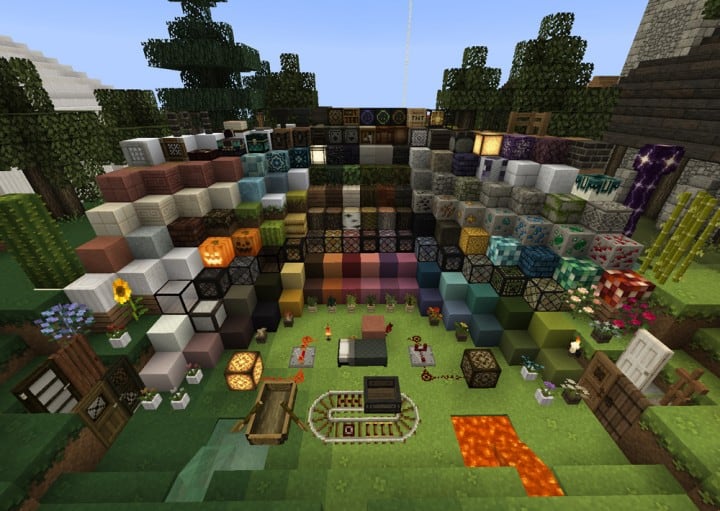
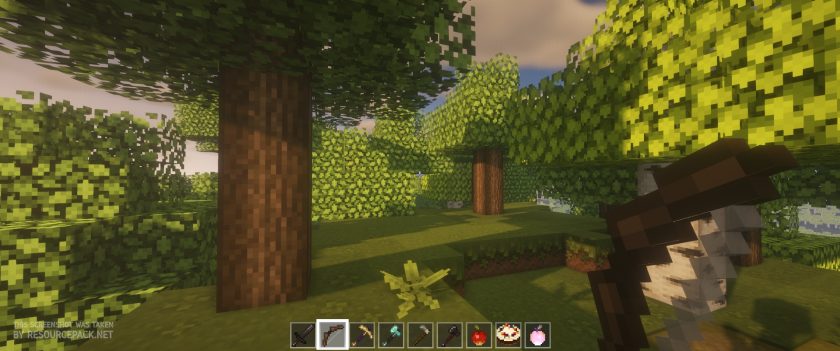
Mizuno's 16 Craft — Screenshots
How to install Mizuno's 16 Craft Resource Pack:
- Most resource packs require Optifine, so be sure to download and install it. – general recommended step for all packs, Optifine is also needed for most shaders
- Download the Mizuno's 16 Craft texture pack for Minecraft from the download section below. – if there are many different versions, just choose the one you like, is compatible with your version/edition of Minecraft, the one you think your computer can handle in terms of performance.
- Launch the game client through the Minecraft launcher.
- On the main menu, click "Options".
- On the options menu, click "Resource Packs...".
- Click on "Open Resource Pack Folder". – folder titled "resourcepacks" will pop up
- Move the .zip file you downloaded in the first step to the newly opened "resourcepacks" folder.
- Click "Done".
- Click on "Resource Packs..." again.
- Your pack should have appeared in the left window, just hover over it and click on the arrow pointing to the right.
QUICK TIP: Sometimes, when activating a pack, the game may say that the pack is made for a newer or older version of Minecraft. This is just a warning, it does not affect your gameplay in anyway, and you can still activate and enjoy the pack by simply clicking the "Yes" button when prompted.
- Click "Done" again.
- The pack has now been successfully loaded and ready to be used in your world!
How to install Mizuno’s CIT pack:
Before you can install the CIT Pack, there are a few requirements you need to meet:
- Minecraft Java Edition
- Optifine
- Mizuno’s 16 Craft Base pack
- Mizuno’s 16 Craft CIT pack
- Invisible Item Frame
Just click “Optifine” above if you haven’t installed it yet. The Mizuno 16 Craft Base pack (if you followed our guide above, it should already be installed), CIT pack and Invisible Item Frame can be found in the download section below.
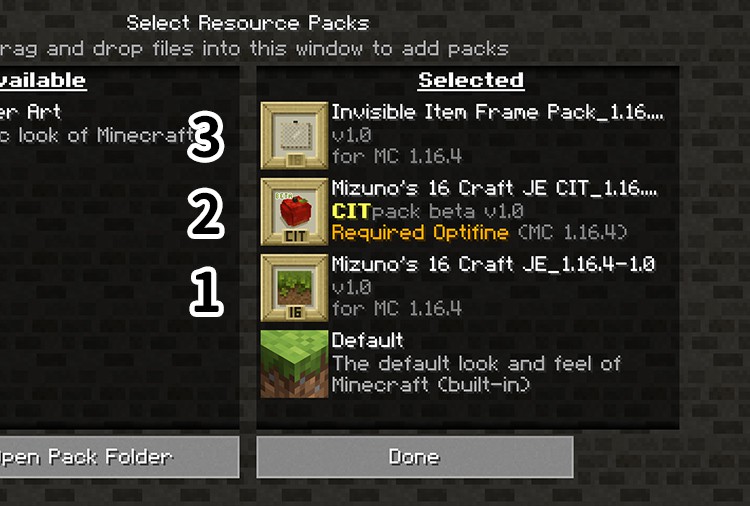
Now that you have successfully installed Optifine and installed the Mizuno’s 16 Craft Base Pack (just follow the instructions on “How to install Mizuno’s 16 Craft Resource Pack” above), you just need to do the same with the CIT Pack and the Invisible Item Frame and make sure they are installed in the correct order as shown in the image below:
How to use Mizuno’s CIT:
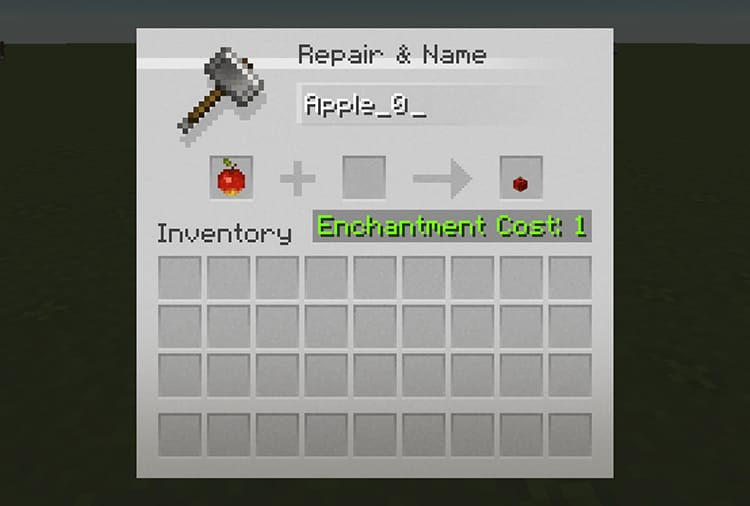
Once you have successfully installed everything we talked about above, you will now be able to use Mizuno’s CIT feature. All you need to do is simply go to the CIT catalog, find the CIT you want to “create” and simply name it on the anvil as shown in the image below:
Place the invisible item frame anywhere and place the newly named item in it. That’s it!
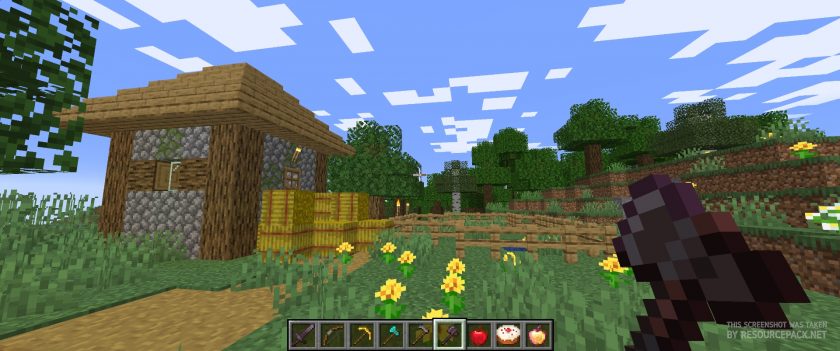
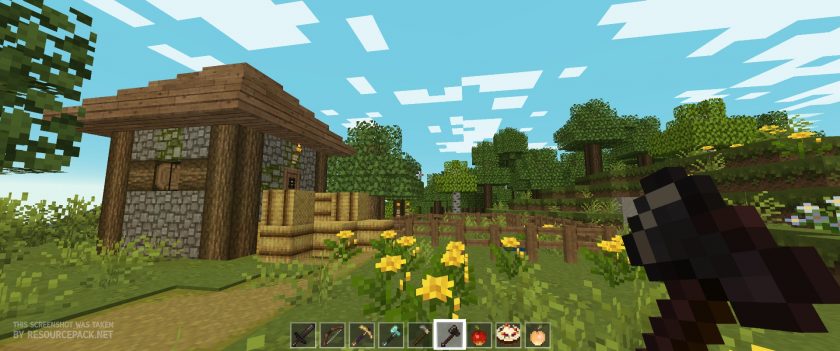
Mizuno's 16 Craft - Comparison Slider #1 Without shaders
Comparison slider #1 for those who want to compare vanilla Minecraft without any texture packs installed (on the left) with Minecraft using this particular texture pack (on the right).
 Vanilla
 Mizuno's 16 Craft
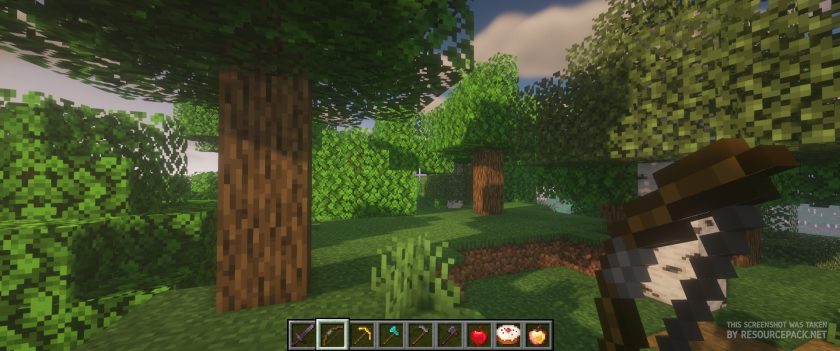
Mizuno's 16 Craft - Comparison Slider #2 With BSL Shaders
Comparison slider #2 for those who want to compare vanilla Minecraft without any texture packs installed (on the left) with Minecraft using this particular texture pack (on the right).
 Vanilla (BSL Shaders)
 Mizuno's 16 Craft (BSL Shaders)
Mizuno's 16 Craft Texture Pack Download
- We do not modify or edit any resource packs. All resource packs, shaders and tools found on this website are linked directly to official sources rather than hosted on our own servers. We provide only the official download links from the original creators to ensure that your files are safe and secure.
- These official links are updated manually and may occasionally stop working when a new version is released. We work hard to keep everything current so that you have a smooth experience. Please let us know in the comments if you find a link that no longer works.
- Minecraft is a trademark of Mojang Studios and has no official connection to this website. Our goal is simply to share the best creations from the community with other players.
- Please consider leaving a comment or voting for your favorite packs. This feedback helps authors improve their projects over time. You can also support the creators directly by visiting the official links located below the download section.
Bedrock Edition:
Get Mizuno Craft for Bedrock Edition here – Mizuno Craft is available on the Marketplace for 830 Minecoins.
Java Edition:
[16x] [26.1 – 1.21.x] Download Modern Mizuno’s Resource Pack – unofficial addon, requires original pack from link below (1.20.6 – 1.20.2), place this add-on on top of original pack;
[16x] [1.20.6 – 1.20.2] Download Mizuno’s 16 Craft Resource Pack
[16x] [1.20.1 – 1.20] Download Mizuno’s 16 Craft Resource Pack
[16x] [1.19.x] Download Mizuno’s 16 Craft Resource Pack
[16x] [1.18.x] Download Mizuno’s 16 Craft Resource Pack
[16x] [1.17.x] Download Mizuno’s 16 Craft Resource Pack
[16x] [1.16.x] Download Mizuno’s 16 Craft Resource Pack
[16x] [1.15.x] Download Mizuno’s 16 Craft Resource Pack
[16x] [1.14.x] Download Mizuno’s 16 Craft Resource Pack
[16x] [1.13.x] Download Mizuno’s 16 Craft Resource Pack
[16x] [1.12.x – 1.11.x] Download Mizuno’s 16 Craft Resource Pack
[16x] [1.10.x] Download Mizuno’s 16 Craft Resource Pack
[16x] [1.9.x] Download Mizuno’s 16 Craft Resource Pack
[16x] [1.8.x] Download Mizuno’s 16 Craft Resource Pack
CIT pack (Java Edition):
[16x] [1.20.x] Download Mizuno’s 16 Craft CIT Resource Pack | Invisible Item Frame
[16x] [1.19.x] Download Mizuno’s 16 Craft CIT Resource Pack | Invisible Item Frame
[16x] [1.18.x] Download Mizuno’s 16 Craft CIT Resource Pack | Invisible Item Frame
[16x] [1.17.x] Download Mizuno’s 16 Craft CIT Resource Pack | Invisible Item Frame
[16x] [1.16.x] Download Mizuno’s 16 Craft CIT Resource Pack | Invisible Item Frame
Curseforge: download starts automatically after a few seconds;
Mediafire: click the big blue button with the text "DOWNLOAD";
Google Drive: in the top right corner you will see a small download icon (down arrow), click it and the download should start;

3,426 votes
Look.. 3426 users have already liked this pack. Give a diamond if you like it too!


Jon
Any Ideas on When The CIT pack for 1.20 will come out? Wanna run it on my server. Also, anyone else having an issue where animals etc are invisible?
elfi
i cant get a download for 1.19.2 :( it keeps saying its incompatible
Admin
Can’t download or can’t install?
july
I wish the cherry oak planks in the new 1.20 version were more pink, they look waay to orange/ too similar to other/”normal” wood!
amarie
i came here to say the same thing! i normally love the way it makes everything look but i was disappointed to see how dull and not pink they look with mizunos :(
Rosalie
The texturepack is amazing, so sad the mobs are invisible :( I will use it when It’s fixed
Lyn
I play with this resource pack for everything, and even in the 1.19.X version, (I play 1.19.2 modded) multiple mobs are invisible except for ears and such. Villagers, cows, iron golems and probably more that I haven’t found yet. I don’t know why this isn’t working now??
Moni
I’m very confused. Playing on version 1.20.1 and I cant see sheep, pig cow, chickens and other mob bodies, only faces at most. Has anyone else had that issue?
Bee
I adore this pack, but the mobs’ textures are totally broken. Sheep seem to be fine, but as for chickens, cows, and pigs, the only thing that shows up are the eyes and ears, or in the chicken’s case, just the head. Same goes for villagers, they’re completely invisible except for faces, which have been replaced with animal faces, that is, just the eyes and ears. Iron golems are the same, just the extra textures on the head and legs show up. I’ve not seen any rabbits, foxes, or wolves yet, just their faces on villagers.
The aesthetics of this pack are fantastic! But until the mobs are fixed I don’t think I can recommend it to my friends just yet.
Becky
I love how everything looks on PC (computer) version. I wish my Bedrock looked like that. :(
Becky
Please make the cherry blossom wood pink again!! The flesh color just isnt right. I miss it so much!! I regret updating it so much! I only use your pack but I’m gonna go back to the default one until its fixed hopefully! Fingers crossed knocking on pretty pink wood
disha
Please make the windows back to their original clear glass. I hate the black outline and it makes some of my builds look off. Also, the cherry doors and trapdoors, I don’t like the flowers and the original cherry doors are way better. The cherry leaves also don’t look that good.
mia
I can’t see any of the chests
mia
And the wolfs only have one ear for me idk??
angelita
plz make the cherry blossoms and the wood pink again 💔 it looks so cute but i wish the color was still pink
Becky
Me too! I just did the update and regret it. I wish I could go back 😪
tilde
is there a way i can make the animals look like normal minecraft?
koda
the cherry blossom leaves are green, but that is easily fixable by turning off custom colours (options > video settings > quality), but with the new update of the texture pack, the cherry wood is no longer pink but more of an apricot colour which really sucks :c
soph
please change the flower pot variants back to normal
Nick
Does anyone have a fix for Path blocks looking like Chiseled Red Sandstone on the sides? Getting it on the 1.19 and 1.20 versions of Mizuno’s ever since the 1.20 update
pez
Hey! I figured out which texture is tinting the cherry blossom trees green – under assets->minecraft->optifine->colormap->, birch.png. For whatever reason the birch tree colormap is affecting the cherry trees, just deleting that texture locally fixed the trees for me and let me keep the other custom textures!
Ellie
I really hope that soon the cherry blossom leaves are no longer green I like the texture pack so much
Jon
The gravel, dirt, and sand are not blending into other blocks. I’m on 1.19.2 and using there Big Chad Guys Plus Modpack, but even if I disable all the other resource packs it doesn’t work. Any suggestions?
Sen
Hi I love this resource pack a lot but the leaves of the cherry blossom trees are having an issue where they’re green instead of pink. I think it’s an issue with optifine but id like it if it could be fixed soon
Brooke
Try turning off custom colors, that worked for me
Luna
How do you turn off custome colours?
M
This worked for me as well
nunu
this worked for me too!! it’s under video settings > quality > custom colors off
a
please try to fix how this interacts with optifine and makes the cherry blossom leaves not pink :(
breebs
cherry blossom leaves aren’t pink :((
setsunai
Cherry wood is not pastel pink, but more of a mix of red and orange
Cherry
Love this texture pack! My only complaint is the cherry blossom tree leaves aren’t pink lol. Would be nice if this was fixed :)
FroggePrince
Playing without Optifine fixed this for me – seems to be interacted weird
Alh_momcraft
Optifine did not fix this for me. They are still a yellowish/green
vicki nicki
The 1.20 download updates all the sprites for the cherry blossom biome update but one issue i’ve been having is that the cherry blossom tree’s leaves aren’t pink as shown in the block itself. Please help me fix this thank you.
tungsten
why are the cherry blossom leaves green
Dishan
Facts